
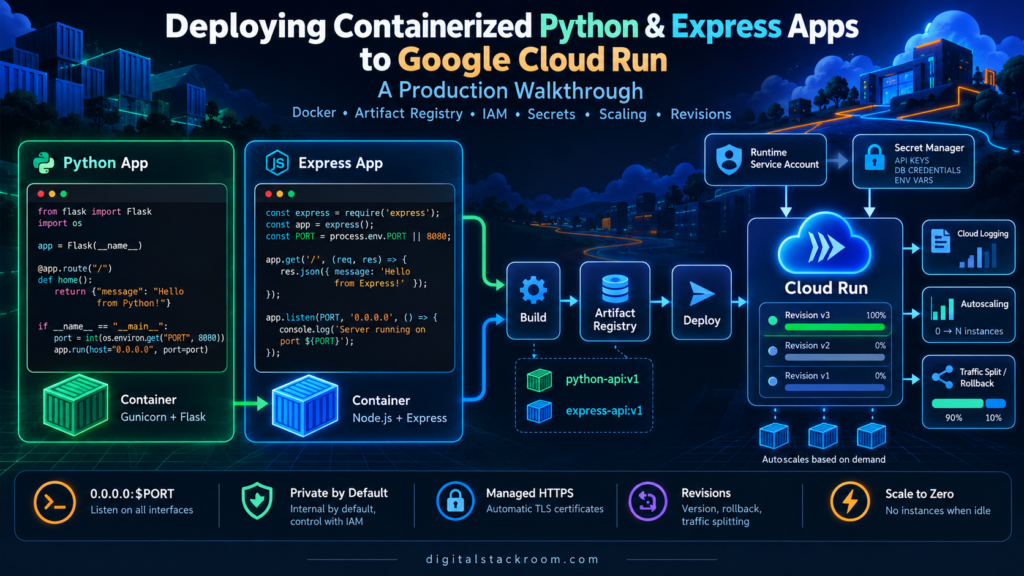
Getting an application to run inside Docker is usually the easy part.
Getting that container into production without exposing secrets, breaking authentication, hardcoding ports, losing logs, or creating a deployment that cannot be rolled back is where the real work begins.
Google Cloud Run sits in an interesting middle ground.
You give it a container image. Cloud Run handles the underlying servers, HTTPS endpoint, autoscaling, revisions, request routing, and integration with Google Cloud IAM.
That makes it attractive for:
- Python APIs;
- Express.js applications;
- webhook listeners;
- internal tools;
- lightweight backend services;
- scheduled HTTP workers;
- data-processing APIs;
- automation services;
- inference endpoints;
- event-driven applications.
But Cloud Run still expects the container to follow a few important rules.
This walkthrough deploys two applications:
Python + Flask + Gunicornand:
Node.js + Expressusing Docker, Artifact Registry, Cloud Build, Secret Manager, IAM, and Cloud Run.
Along the way, we will also cover the production decisions that are easy to miss in a simple quickstart.
Table of Contents
What Google Cloud Run Actually Does
Cloud Run is a managed container runtime.
Instead of provisioning a virtual machine and manually installing:
Linux
Python / Node.js
Nginx
Process manager
TLS certificates
Scaling logic
Load balancer
you provide a container image.
Cloud Run runs it for you.
At a high level:
Application Code
      ↓
Docker Image
      ↓
Artifact Registry
      ↓
Cloud Run Revision
      ↓
HTTPS Endpoint
      ↓
Users / Services / Webhooks
Cloud Run can automatically create additional container instances when traffic increases and reduce them again when demand falls.
For many services, it can scale down to zero instances when there is no traffic.
That is fundamentally different from a traditional VM where your server usually remains running continuously.
Cloud Run Service vs. Cloud Run Job
Before deploying anything, make sure you are using the correct Cloud Run resource.
Cloud Run Service
A service is designed to receive requests.
Examples:
REST API
Express application
Flask API
Webhook endpoint
Internal web application
Inference API
The container starts a web server and listens for incoming requests.
Cloud Run Job
A job is designed to execute work and exit.
Examples:
Nightly ETL
Batch file processing
Database cleanup
One-time migration
Scheduled report generation
A Cloud Run job should not start an HTTP server.
Its process should complete with:
exit code 0when successful, and a non-zero exit code when it fails.
For scheduled batch workloads, Cloud Scheduler can trigger Cloud Run jobs or services depending on the architecture.
For a deeper comparison of scheduling options, see:
CRON vs GitHub Actions vs Google Cloud Scheduler
This article focuses on Cloud Run services.
The Cloud Run Container Contract
Cloud Run can run almost any Linux container, but the container must follow its runtime contract.
The most important requirement is:
Listen on the port provided by the PORT environment variable.Cloud Run injects:
PORTinto the ingress container.
The default is normally:
8080but production code should not assume that value permanently.
Your application must also listen on:
0.0.0.0not:
127.0.0.1because Cloud Run needs to reach the application from outside the container process itself.
Correct:
0.0.0.0:8080Incorrect:
127.0.0.1:8080Cloud Run terminates TLS before forwarding traffic to your container, so your application generally does not need to manage HTTPS certificates itself.
The Production Architecture We Will Build
The basic deployment flow will be:
Developer
   ↓
Application Source
   ↓
Dockerfile
   ↓
Cloud Build
   ↓
Artifact Registry
   ↓
Cloud Run
   ↓
HTTPS Endpoint
For secrets:
Secret Manager
      ↓
Cloud Run Revision
      ↓
Application
For Google Cloud API access:
Cloud Run Service
      ↓
Runtime Service Account
      ↓
IAM
      ↓
BigQuery / Storage / Pub/Sub / Secret Manager
No service-account JSON key file needs to be baked into the image.
That distinction matters.
Prerequisites
You need:
Google Cloud project
Google Cloud CLI
Cloud Run API
Artifact Registry API
Cloud Build API
Docker locally, if you want local container testing
Authenticate the CLI:
gcloud auth loginSet your project:
gcloud config set project YOUR_PROJECT_IDThen define a few values.
export PROJECT_ID="YOUR_PROJECT_ID"
export REGION="asia-south1"
export REPOSITORY="cloud-run-apps"
Replace the region with the region appropriate for your workload.
Keeping the application, Artifact Registry repository, database, and related services geographically close usually reduces latency and cross-region complexity.
Enable the Required APIs
Enable Cloud Run, Artifact Registry and Cloud Build.
gcloud services enable \
  run.googleapis.com \
  artifactregistry.googleapis.com \
  cloudbuild.googleapis.com
If the application will use Secret Manager:
gcloud services enable \
  secretmanager.googleapis.com
Other applications may require APIs such as:
BigQuery
Cloud SQL
Pub/Sub
Cloud Storage
Firestore
Only enable what the application actually needs.
Create an Artifact Registry Repository
Artifact Registry stores the container images that Cloud Run will deploy.
Create a Docker repository:
gcloud artifacts repositories create cloud-run-apps \
  --repository-format=docker \
  --location=asia-south1 \
  --description="Cloud Run application images"
Your image URLs will follow this pattern:
REGION-docker.pkg.dev/PROJECT_ID/REPOSITORY/IMAGE:TAGFor example:
asia-south1-docker.pkg.dev/my-project/cloud-run-apps/python-api:v1Using explicit image versions such as:
v1
v2
2026-10-24
git-abc123
makes production deployments easier to trace than relying exclusively on:
latestPart 1: Deploying a Containerized Python Application
Create the Python Project
We will use:
Flask
+
Gunicorn
The project structure is:
python-api/
├── app.py
├── requirements.txt
├── Dockerfile
└── .dockerignore
Create the Flask Application
Create:
app.pyimport os
from flask import Flask, jsonify
app = Flask(__name__)
@app.get("/")
def index():
return jsonify(
service="python-api",
status="running"
)
@app.get("/healthz")
def health():
return jsonify(status="ok"), 200
if __name__ == "__main__":
port = int(os.environ.get("PORT", "8080"))
app.run(
host="0.0.0.0",
port=port
)The local Flask server is useful during development.
For production, we will use Gunicorn.
Add Python Dependencies
Create:
requirements.txtFlask>=3.1,<4
gunicorn>=23,<24For a real production repository, pin and update dependencies through your normal dependency-management process.
Avoid leaving dependencies permanently unconstrained.
Why Use Gunicorn Instead of Flask’s Development Server?
The Flask development server is designed primarily for development.
Cloud Run should run a production WSGI server.
Gunicorn is a common choice.
The process model becomes:
Cloud Run
   ↓
Gunicorn
   ↓
Flask
instead of:
Cloud Run
   ↓
Flask development server
Create the Python Dockerfile
Create:
DockerfileFROM python:3.12-slim
ENV PYTHONDONTWRITEBYTECODE=1
ENV PYTHONUNBUFFERED=1
WORKDIR /app
RUN addgroup --system appgroup \
&& adduser --system \
--ingroup appgroup \
appuser
COPY requirements.txt .
RUN pip install \
--no-cache-dir \
-r requirements.txt
COPY --chown=appuser:appgroup . .
USER appuser
CMD ["sh", "-c", "exec gunicorn --bind 0.0.0.0:${PORT:-8080} --workers 1 --threads 8 app:app"]There are several intentional decisions here.
Why the Dockerfile Uses ${PORT}
Cloud Run injects the port through:
PORTUsing:
${PORT:-8080}means:
Use Cloud Run's PORT value when present.

Otherwise use 8080 locally.
The shell wrapper exists because environment-variable substitution does not happen automatically inside every JSON-form Docker CMD.
Why the Container Runs as a Non-Root User
The Dockerfile creates:
appuserand runs the application as that user.
Cloud Run already provides container isolation and blocks privilege escalation, but running application processes as a non-root user is still a useful container-hardening practice.
Do not design the application around privileged host operations.
Cloud Run does not provide a Docker-style:
--privilegedexecution mode.
Add .dockerignore
Create:
.dockerignore.git
.gitignore
__pycache__
*.pyc
*.pyo
*.pyd
.venv
venv
.env
.env.*
Dockerfile*
README*
testsThis prevents local files from unnecessarily entering the Docker build context.
Most importantly, do not accidentally copy:
.env
credentials
local service-account keys
into production images.
Test the Python Container Locally
Build:
docker build -t python-api .Run:
docker run \
  --rm \
  -p 8080:8080 \
  -e PORT=8080 \
  python-api
Then test:
curl http://localhost:8080/Expected response:
{
  "service": "python-api",
  "status": "running"
}
Health check:
curl http://localhost:8080/healthzBuild the Python Image with Cloud Build
From the parent directory:
gcloud builds submit \
  --tag \
  "$REGION-docker.pkg.dev/$PROJECT_ID/$REPOSITORY/python-api:v1" \
  ./python-api
Cloud Build:
Uploads source
      ↓
Reads Dockerfile
      ↓
Builds image
      ↓
Pushes image
      ↓
Artifact Registry
You do not need Docker running locally when Cloud Build performs the build remotely.
Part 2: Deploying a Containerized Express.js Application
Create the Express Project
Use this structure:
express-api/
├── server.js
├── package.json
├── package-lock.json
├── Dockerfile
└── .dockerignore
Initialize:
mkdir express-api
cd express-api

npm init -y
npm install express
Create the Express Server
Create:
server.jsconst express = require("express");
const app = express();
app.disable("x-powered-by");
app.use(express.json({
limit: "1mb"
}));
app.get("/", (req, res) => {
res.status(200).json({
service: "express-api",
status: "running"
});
});
app.get("/healthz", (req, res) => {
res.status(200).json({
status: "ok"
});
});
const port =
Number.parseInt(
process.env.PORT || "8080",
10
);
app.listen(port, "0.0.0.0", () => {
console.log(
`Express server listening on port ${port}`
);
});Two details matter for Cloud Run:
process.env.PORTand:
"0.0.0.0"Add the Start Script
Update:
package.jsonso it contains:
{
  "scripts": {
    "start": "node server.js"
  }
}
Your dependencies remain in the same file.
Create the Express Dockerfile
FROM node:22-slim AS dependencies

WORKDIR /app

COPY package*.json ./

RUN npm ci --omit=dev


FROM node:22-slim

ENV NODE_ENV=production

WORKDIR /app

COPY --from=dependencies \
  /app/node_modules \
  ./node_modules

COPY --chown=node:node . .

USER node

CMD ["node", "server.js"]
The first stage installs production dependencies.
The second stage contains:
application code
+
production node_modules
and runs under Node’s non-root user.
Add the Express .dockerignore
node_modules
npm-debug.log
.git
.gitignore
.env
.env.*
coverage
test
tests
README*
You do not want your local:
node_modulescopied into the image.
The dependencies inside the image should come from:
npm ciusing the lock file.
Test the Express Container Locally
Build:
docker build -t express-api .Run:
docker run \
  --rm \
  -p 8080:8080 \
  -e PORT=8080 \
  express-api
Test:
curl http://localhost:8080/Expected response:
{
  "service": "express-api",
  "status": "running"
}
Build the Express Image
gcloud builds submit \
  --tag \
  "$REGION-docker.pkg.dev/$PROJECT_ID/$REPOSITORY/express-api:v1" \
  ./express-api
At this point, Artifact Registry contains both images.
cloud-run-apps/
├── python-api:v1
└── express-api:v1
Part 3: Create Runtime Service Accounts
Do Not Use Service-Account Key Files Inside Cloud Run
This is an important production rule.
Avoid creating:
service-account.jsonand putting it inside your container.
Also avoid setting:
GOOGLE_APPLICATION_CREDENTIALS=/app/service-account.jsonfor normal Cloud Run access to Google Cloud APIs.
Cloud Run supports service identity.
Assign a Google Cloud service account to the service.
Cloud client libraries running inside Cloud Run can then obtain credentials through Application Default Credentials.
The architecture becomes:
Cloud Run
   ↓
Service Identity
   ↓
IAM
   ↓
Google Cloud API
rather than:
Container
   ↓
Long-lived JSON key
   ↓
Google Cloud API
Create a Dedicated Python Runtime Identity
gcloud iam service-accounts create python-api-runner \
  --display-name="Python Cloud Run runtime"
Create one for Express:
gcloud iam service-accounts create express-api-runner \
  --display-name="Express Cloud Run runtime"
Their addresses will look like:
python-api-runner@PROJECT_ID.iam.gserviceaccount.comand:
express-api-runner@PROJECT_ID.iam.gserviceaccount.comApply Least Privilege
Do not automatically grant:
Editor
Owner
to application service accounts.
Give each service only the permissions it actually needs.
For example, a service that only reads objects from a Storage bucket should not receive broad project-wide administration permissions.
Similarly:
BigQuery reader
≠
BigQuery administrator

Secret accessor
≠
Secret administrator
Runtime identity and deployment identity should also be treated as separate concepts.
The account deploying Cloud Run does not have to be the account Cloud Run uses while the application is running.
Part 4: Deploy the Python Service
Deploy as a Private Service
gcloud run deploy python-api \
  --image="$REGION-docker.pkg.dev/$PROJECT_ID/$REPOSITORY/python-api:v1" \
  --region="$REGION" \
  --service-account="python-api-runner@$PROJECT_ID.iam.gserviceaccount.com"
Cloud Run services are protected by authentication by default.
That is normally the correct starting point for:
internal APIs
administrative tools
backend services
service-to-service communication
Deploy a Public API
If the application intentionally needs unauthenticated public access:
gcloud run deploy python-api \
  --image="$REGION-docker.pkg.dev/$PROJECT_ID/$REPOSITORY/python-api:v1" \
  --region="$REGION" \
  --service-account="python-api-runner@$PROJECT_ID.iam.gserviceaccount.com" \
  --allow-unauthenticated
Do not automatically add:
--allow-unauthenticatedto every tutorial deployment.
Public access should be a deliberate decision.
Some organizations also enforce policies that prevent Cloud Run services from being exposed publicly.
Part 5: Deploy the Express Service
The Express deployment is almost identical.
gcloud run deploy express-api \
  --image="$REGION-docker.pkg.dev/$PROJECT_ID/$REPOSITORY/express-api:v1" \
  --region="$REGION" \
  --service-account="express-api-runner@$PROJECT_ID.iam.gserviceaccount.com"
For an intentionally public service:
gcloud run deploy express-api \
  --image="$REGION-docker.pkg.dev/$PROJECT_ID/$REPOSITORY/express-api:v1" \
  --region="$REGION" \
  --service-account="express-api-runner@$PROJECT_ID.iam.gserviceaccount.com" \
  --allow-unauthenticated
Cloud Run returns a stable service URL after deployment.
Public Webhook Endpoints
A webhook listener is one example where public reachability may be required.
The endpoint might look like:
Provider
   ↓
HTTPS
   ↓
Cloud Run Express Service
   ↓
Signature Verification
   ↓
Queue / Database
Public reachability does not mean the payload should be trusted.
The webhook still needs:
signature verification
payload validation
idempotency
request-size limits
fast acknowledgement
For the application layer, see:
Setting Up Webhook Listeners in Express.js: Handling Real-Time Payloads Securely
Part 6: Configuration vs. Secrets
Normal Configuration Can Use Environment Variables
Examples include:
LOG_LEVEL
APP_ENV
FEATURE_FLAG
API_BASE_URL
DATASET_NAME
Set them during deployment:
gcloud run deploy python-api \
  --image="$REGION-docker.pkg.dev/$PROJECT_ID/$REPOSITORY/python-api:v1" \
  --region="$REGION" \
  --set-env-vars="APP_ENV=production,LOG_LEVEL=INFO"
In Python:
import os

app_env = os.environ.get(
    "APP_ENV",
    "development"
)
In Node.js:
const appEnv =
  process.env.APP_ENV || "development";
Do Not Put Secrets in Ordinary Environment Configuration
Avoid:
--set-env-vars="DB_PASSWORD=my-password"for sensitive production data.
Use Secret Manager.
Create a Secret
Example:
printf '%s' 'super-secret-value' |
gcloud secrets create api-secret \
  --data-file=-
If the secret already exists, add another version instead:
printf '%s' 'new-secret-value' |
gcloud secrets versions add api-secret \
  --data-file=-
Grant the Runtime Service Account Access
For the Python service:
gcloud secrets add-iam-policy-binding api-secret \
  --member="serviceAccount:python-api-runner@$PROJECT_ID.iam.gserviceaccount.com" \
  --role="roles/secretmanager.secretAccessor"
Now Cloud Run can access that secret through its runtime identity.
Expose the Secret to the Container
For example:
gcloud run services update python-api \
  --region="$REGION" \
  --update-secrets="API_SECRET=api-secret:1"
Inside Python:
import os

api_secret = os.environ["API_SECRET"]
Google recommends pinning an environment-variable secret to a specific version because environment-variable secrets are resolved when the instance starts.
For secrets that need smoother rotation, Secret Manager volumes are another option.
Why This Is Better Than Putting .env in Docker
This:
Docker Image
   ↓
Contains Secret
means anyone with sufficient access to the image may potentially retrieve the embedded credential.
Instead:
Docker Image
      +
Runtime IAM
      +
Secret Manager
keeps code and credentials separate.
Part 7: Health Checks
Why Add a Health Endpoint?
An HTTP process can technically be running while the application itself is unusable.
A health endpoint gives infrastructure a simple way to ask:
Are you ready to serve traffic?Our examples include:
/healthzFor Flask:
@app.get("/healthz")
def health():
    return {"status": "ok"}, 200
For Express:
app.get("/healthz", (req, res) => {
  res.status(200).json({
    status: "ok"
  });
});
Startup, Liveness and Readiness
Cloud Run supports several health-check concepts.
Startup Probe
Answers:
Has the application successfully started?This is useful for services that need time to initialize.
Liveness Probe
Answers:
Is this instance still healthy enough to continue running?A repeatedly failing liveness probe can cause the container instance to be restarted.
Readiness Probe
Answers:
Should this instance currently receive new traffic?Readiness behavior should be designed carefully because a dependency outage should not necessarily make every application instance unavailable.
Keep Health Checks Lightweight
Avoid writing:
/healthz
   ↓
Query 10 databases
   ↓
Call external API
   ↓
Read entire storage bucket
on every health check.
That can turn the health endpoint itself into a source of instability.
A health check should normally validate the minimum state required to safely serve traffic.
Part 8: Scaling
Scale-to-Zero
Cloud Run can reduce a service to zero instances when there is no traffic if minimum instances are not configured.
This is useful for:
low-traffic APIs
development environments
internal tools
occasional webhooks
because idle infrastructure can be reduced substantially.
The trade-off is that a request may occasionally have to wait for a new instance to start.
That is commonly called a:
cold startMinimum Instances
If latency is important, you can keep instances warm.
For example:
gcloud run services update python-api \
  --region="$REGION" \
  --min=1
Now Cloud Run keeps at least one instance ready.
This may improve cold-start behavior, but it also changes the cost profile.
Do not set:
min instances = 10simply because “more must be faster.”
Measure first.
Maximum Instances
A maximum-instance limit can protect downstream systems.
Imagine:
Cloud Run
   ↓
Scales to hundreds of instances
   ↓
Every instance opens database connections
The database may fail before Cloud Run does.
For example:
gcloud run services update python-api \
  --region="$REGION" \
  --max=20
Scaling limits are part of application architecture, not just Cloud Run configuration.
Part 9: Concurrency
One Cloud Run instance can serve multiple requests concurrently.
That can be efficient.
It can also expose problems in applications that were written as though only one request could execute at a time.
Consider:
Request A
Request B
Request C
all reaching the same application instance.
Shared global state can now become unsafe.
Python Concurrency
Our Gunicorn example uses:
1 worker
8 threads
That is only a starting point.
The correct setup depends on whether the application is:
CPU-heavy
I/O-heavy
memory-heavy
thread-safe
database-bound
Benchmark the actual application.
Do not copy worker formulas from unrelated VM deployments without considering Cloud Run’s CPU and concurrency model.
Express Concurrency
Node.js naturally handles many I/O-bound operations concurrently through its event loop.
That does not mean every Express application can handle unlimited concurrency.
Examples of bottlenecks include:
database pool size
CPU-heavy JSON transformations
image processing
synchronous code
external API limits
shared memory
Cloud Run concurrency should never be tuned in isolation from the application itself.
Lower Concurrency for Heavy Requests
A CPU-intensive inference endpoint may perform better with:
concurrency = 1while a lightweight REST API may efficiently handle considerably more simultaneous requests.
A higher concurrency can reduce the number of required instances.
A lower concurrency can provide stronger workload isolation.
The correct value is measurable, not ideological.
Part 10: Request Timeouts
Cloud Run services have a configurable request timeout.
The current default is five minutes, and it can be extended up to 60 minutes.
That does not mean every long-running workload belongs inside an HTTP request.
Suppose an endpoint performs:
45-minute batch transformationKeeping the HTTP request open may create unnecessary reliability problems.
A better architecture may be:
HTTP Request
    ↓
Create Job
    ↓
Return 202
    ↓
Queue / Cloud Run Job
    ↓
Long Processing
For asynchronous workflows, separate:
request acceptancefrom:
work completionwhenever practical.
Part 11: Logging
Cloud Run automatically integrates container logs with Cloud Logging when the application writes to:
stdoutor:
stderrThat means this Python code:
import logging

logging.info("Order processed")
and this Node.js code:
console.log("Order processed");can be collected without writing logs into local application files.
Prefer Structured Logs
Instead of:
Something failedproduce context.
For example:
{
  "severity": "ERROR",
  "message": "Webhook processing failed",
  "eventId": "evt_123",
  "eventType": "order.completed"
}
Structured logs become much easier to:
filter
aggregate
alert on
investigate
Don’t Log Secrets
Never casually log:
Authorization headers
passwords
access tokens
webhook secrets
database credentials
full payment payloads
Observability and data leakage are not the same thing.
Part 12: The Local Filesystem Is Not Durable Application Storage
Containers have a writable filesystem while they are running.
That does not make it a reliable persistent database.
Do not design the application like this:
User uploads file
      ↓
Save permanently to /app/uploads
      ↓
Assume it will exist forever
Cloud Run instances can be created and destroyed.
A request may later reach another instance.
Use external durable storage for persistent data.
Examples:
Cloud Storage
Cloud SQL
Firestore
BigQuery
AlloyDB
External managed database
Temporary files can still be useful during request processing.
Just do not confuse instance-local files with durable shared storage.
Part 13: Revisions
One of Cloud Run’s most useful production concepts is the revision.
Every configuration change creates a new revision.
For example:
python-api-00001
python-api-00002
python-api-00003
A revision represents an immutable deployment configuration.
That includes things such as:
container image
environment variables
service account
CPU
memory
concurrency
secrets
This is much safer than modifying a running server manually.
Deployment History
Suppose:
Revision 12
↓
Works correctly

Revision 13
↓
Introduces bug
Cloud Run can route traffic back to revision 12.
You do not have to rebuild the previous container just to recover.
Part 14: Traffic Splitting and Gradual Rollouts
Cloud Run can distribute traffic across revisions.
For example:
Revision A
90%

Revision B
10%
This lets you observe a new version before sending all users to it.
Once you are confident:
Revision B
100%
This approach is useful for:
canary deployment
gradual rollout
risk reduction
production validation
If the new revision behaves badly, traffic can be directed back to the previous revision.
Deployment Health Checks
Cloud Run performs a deployment health check by starting an instance and waiting for its startup condition to succeed before routing traffic.
If the new revision cannot start correctly, Cloud Run can mark it unhealthy instead of immediately routing production traffic to it.
That is one reason startup behavior matters.
Do not make application initialization depend unnecessarily on fragile external operations.
Part 15: Public vs. Private Services
This choice deserves deliberate attention.
Public
Use public access for services genuinely intended to be called from the internet without Google IAM authentication.
Examples:
public website
public API
third-party webhook endpoint
The application may still implement its own authentication.
Private
Use IAM-protected Cloud Run services for:
internal APIs
admin tools
backend microservices
Cloud Scheduler targets
service-to-service traffic
Private is the safer default.
Service-to-Service Authentication
Imagine:
frontend-service
      ↓
backend-service
where both run on Cloud Run.
The backend can remain private.
The frontend’s runtime service account receives permission to invoke the backend.
The frontend then sends an identity token when calling it.
This is much better than inventing a shared static password between every internal service.
Part 16: Cloud Scheduler + Cloud Run
One common pattern is:
Cloud Scheduler
      ↓
Authenticated HTTP
      ↓
Private Cloud Run Service
Cloud Scheduler can use an OIDC identity token to call the service securely.
For example:
06:00 every day
      ↓
Cloud Scheduler
      ↓
POST /daily-report
      ↓
Cloud Run
You do not have to make the scheduled endpoint publicly accessible just so the scheduler can reach it.
For the full scheduling comparison, see:
CRON vs GitHub Actions vs Google Cloud Scheduler
Part 17: Containerized Data-Processing APIs
Cloud Run also works well when an HTTP request launches a relatively short data-processing operation.
For example:
Upload notification
      ↓
Cloud Run
      ↓
Parse JSON
      ↓
Validate
      ↓
Transform CSV
      ↓
Cloud Storage / BigQuery
The code performing the transformation does not need to know whether it is running on a VM or Cloud Run.
The main design consideration is ensuring that persistent state lives outside the ephemeral container.
For Python file-processing patterns, see:
Automating File Processing with Python: Parsing Complex JSON and Nested CSVs at Scale
Part 18: Cloud Run for Browser Automation
Technically, containerized browser automation can also run in serverless infrastructure.
A service might execute:
Playwright
Chromium
Validation script
inside a container.
However, browser workloads tend to consume more:
memory
CPU
startup time
than lightweight REST APIs.
Concurrency therefore needs to be tuned carefully.
For browser automation architecture, see:
Playwright vs Selenium for Headless Browser Automation
Part 19: Handling Downstream API Failures
Cloud Run autoscaling can unintentionally increase pressure on an external API.
Imagine:
Traffic spike
      ↓
Cloud Run scales out
      ↓
20 instances
      ↓
Each calls external API
      ↓
429 Too Many Requests
The application still needs:
rate limiting
timeouts
retry limits
exponential backoff
jitter
Cloud Run scaling does not replace application-level resiliency.
For a deeper walkthrough, see:
REST API Rate Limiting and Exponential Backoff in Python
Part 20: Production Deployment Example
A more realistic deployment command might look like:
gcloud run deploy python-api \
  --image="$REGION-docker.pkg.dev/$PROJECT_ID/$REPOSITORY/python-api:v2" \
  --region="$REGION" \
  --service-account="python-api-runner@$PROJECT_ID.iam.gserviceaccount.com" \
  --set-env-vars="APP_ENV=production,LOG_LEVEL=INFO" \
  --update-secrets="API_SECRET=api-secret:1" \
  --min=1 \
  --max=20 \
  --concurrency=20 \
  --memory=1Gi \
  --cpu=1
Do not copy those scaling values blindly.
They are examples of configuration, not universally correct defaults.
The correct values depend on measurements from your own service.
Part 21: Build Once, Deploy the Same Image
A useful production principle is:
Build once.
Promote the same image.
For example:
Image:
python-api:git-a91c42f
could move through:
Development
     ↓
Staging
     ↓
Production
without being rebuilt between environments.
Configuration changes by environment.
The image does not.
This improves reproducibility.
Avoid Environment-Specific Code Inside the Image
Bad:
if production:
    database = "hardcoded-prod-db"

if staging:
    database = "hardcoded-stage-db"
Better:
database = os.environ["DATABASE_NAME"]Then deploy:
Same image
+
different configuration
Part 22: CI/CD Deployment
Once manual deployment works, move the process into CI/CD.
The flow becomes:
git push
   ↓
CI
   ↓
Test
   ↓
Build Image
   ↓
Artifact Registry
   ↓
Deploy Cloud Run Revision
   ↓
Health Check
   ↓
Traffic
GitHub Actions can perform this workflow, or you can use Google Cloud Build triggers.
Do not automate deployment before you understand the manual process.
CI/CD should automate a known-good deployment path, not hide an unclear one.
Part 23: Common Cloud Run Deployment Failures
Container Failed to Start
A frequent error is:
Container failed to start and listen on the port
defined by the PORT environment variable
Common causes include:
Hardcoded wrong port
Listening on 127.0.0.1
Application crashed during startup
Missing dependency
Incorrect Docker CMD
Invalid environment configuration
Check Cloud Run logs first.
Works Locally but Fails on Cloud Run
Ask:
Does it listen on $PORT?
Does it bind to 0.0.0.0?
Does the image support Linux amd64?
Are required environment variables present?
Does the runtime service account have IAM access?
Does the container expect local credentials?
Containerizing an application does not automatically make its surrounding assumptions portable.
Permission Denied Calling Google APIs
If code can run but receives:
403 Permission Deniedthe problem is often IAM.
Check the runtime service account.
The question is not:
What permissions does my personal Google account have?It is:
What permissions does the Cloud Run service identity have?Secret Is Missing
Check:
Secret exists
Secret version exists
Runtime service account has Secret Accessor
Cloud Run revision references correct secret
Remember that changing Cloud Run secret configuration creates a new revision.
Database Connections Fail Under Load
This may not be a network problem.
Cloud Run may simply have scaled beyond the database’s available connection capacity.
Use:
connection pooling
maximum instance limits
sensible concurrency
database connection limits
together.
Part 24: Production Checklist
Before calling a Cloud Run deployment production-ready, I would review at least these areas:
| Area | Check |
|---|---|
| Container | Listens on 0.0.0.0:$PORT |
| Image | Built reproducibly |
| Dependencies | Locked/reviewed |
| User | Non-root where practical |
| Secrets | Stored outside the image |
| Runtime identity | Dedicated service account |
| IAM | Least privilege |
| Authentication | Public only when intentionally required |
| Logs | Written to stdout/stderr |
| Health | Lightweight endpoint/probes |
| Scaling | Min/max considered |
| Concurrency | Tested under real workload |
| Database | Pool size matches scaling behavior |
| Timeout | Appropriate for workload |
| Persistence | No reliance on local disk for durable data |
| Revisions | Rollback path understood |
| Traffic | Gradual rollout available |
| Monitoring | Errors and latency observable |
| CI/CD | Deployments reproducible |
| Container tags | Traceable to release/commit |
Cloud Run vs. a Traditional VM
Cloud Run removes a lot of infrastructure management.
But that does not make it the correct platform for every workload.
| Requirement | Cloud Run | VM |
|---|---|---|
| Server management | Managed | You manage |
| Automatic scaling | Built in | Must configure |
| Scale to zero | Yes | Usually no |
| Persistent local disk | Not for normal service state | Available |
| Long-lived OS customization | Limited | Full control |
| Privileged container operations | No | Possible |
| HTTP APIs | Excellent fit | Supported |
| Background daemon | Usually not ideal as a service | Good fit |
| Infrastructure control | Lower | Higher |
Cloud Run is especially attractive when the application is:
stateless
HTTP-driven
containerized
horizontally scalable
If the application depends heavily on one permanent machine, privileged host access, or persistent local state, another platform may be more appropriate.
A Practical Production Architecture
For a typical production API, the final architecture may look like:
                  ┌─────────────────┐
                  │ Secret Manager  │
                  └────────┬────────┘
                           │
                           ▼
Client ──HTTPS──► Cloud Run Service
                           │
                  Runtime Service Account
                           │
               ┌───────────┼───────────┐
               ▼           ▼           ▼
           Cloud SQL     Storage     BigQuery
               │
               ▼
          Persistent Data
Deployment happens separately:
Git
 ↓
CI / Cloud Build
 ↓
Container Image
 ↓
Artifact Registry
 ↓
Cloud Run Revision
 ↓
Traffic
Those two flows should remain conceptually separate:
deployment identityand:
runtime identityare not the same responsibility.
Final Thoughts
Cloud Run makes deploying containers easy.
Production architecture is still your responsibility.
The most important lessons are not the gcloud commands.
They are the boundaries.
The container owns:
application code
dependencies
runtime
Cloud Run owns:
instance lifecycle
HTTPS endpoint
request routing
autoscaling
revisions
IAM owns:
who can call the service
what the service can access
Secret Manager owns:
sensitive configurationArtifact Registry owns:
container imagesCloud Logging owns:
centralized runtime logsWhen those responsibilities are kept separate, Cloud Run becomes a very clean deployment platform.
For Python and Express applications in particular, the deployment pattern is straightforward:
Build container
      ↓
Push image
      ↓
Assign runtime identity
      ↓
Deploy privately by default
      ↓
Attach configuration and secrets
      ↓
Test
      ↓
Observe
      ↓
Scale
      ↓
Roll forward or roll back
That is the difference between simply getting a container online and having a deployment you can confidently operate in production.
Official Documentation and Technical References
The Cloud Run behavior and deployment practices described in this article were checked against current Google Cloud documentation.
Google Cloud Run
Cloud Run Container Runtime Contract
Deploy Container Images to Cloud Run
Deploy Cloud Run Services from Source
Configure Cloud Run Service Accounts
Cloud Run Authentication Overview
Allow Public Access to Cloud Run
Configure Secrets for Cloud Run
Configure Cloud Run Health Checks
Cloud Run Rollouts and Rollbacks