
A browser automation script can look perfectly reliable during development and still fail the moment it meets a real production website.
The page loads, but the table is empty. A button exists, but it is not ready to be clicked. Data appears several seconds after the initial HTML arrives. A login flow opens another tab. A dashboard refreshes its content through JavaScript without reloading the page.
This is where a normal HTTP client such as requests starts to reach its limits.
If the information you need only exists after JavaScript executes, or if extraction requires clicking, scrolling, authentication, filtering, downloading files, or validating what a user actually sees, a headless browser can be the right tool.
Two of the most widely used options are Playwright and Selenium.
Both can automate real browsers. Both can run without a visible browser window. Both can extract rendered content and validate web applications.
But they approach browser automation differently, and those differences matter once a script moves beyond a small proof of concept.
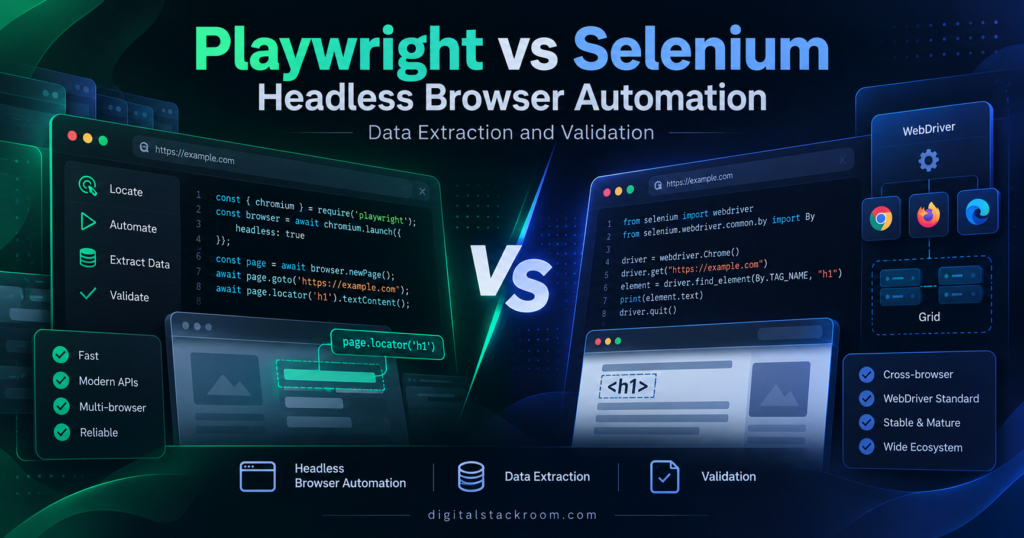
This article compares Playwright and Selenium specifically from the perspective of data extraction, website validation, dynamic content, reliability, and production automation.
Table of Contents
What Is Headless Browser Automation?
A headless browser is a browser that runs without displaying its normal graphical window.
The rendering engine is still there. JavaScript still executes. Cookies, sessions, DOM updates, redirects, API calls, local storage, forms, and browser events still behave much like they would in an interactive browser.
The main difference is that the browser is being controlled programmatically.
For example, an automation process can:
- open a webpage;
- log in;
- wait for a dynamically loaded table;
- click a filter;
- extract rows from the rendered DOM;
- verify that required fields are present;
- download a report;
- capture a screenshot when validation fails;
- close the browser.
That makes a headless browser useful for much more than traditional UI testing.
It can sit inside data pipelines, scheduled validation jobs, monitoring systems, ETL workflows, quality checks, and internal automation tools.
When Do You Actually Need a Headless Browser?
A headless browser should not automatically be the first choice for extracting data from the web.
If the information is already available through a documented API or directly inside the server-returned HTML, an HTTP client is usually simpler and consumes fewer resources.
The browser becomes valuable when the page itself has to run before the data becomes available.
Consider a modern analytics dashboard.
The server may initially return something similar to:
<div id="dashboard"></div>
<script src="app.js"></script>
There may be no useful table in that original HTML.
After the browser executes app.js, the application could call an API and dynamically create:
<table id="sales-table">
    ...
</table>
A basic HTTP request only sees the original response unless you separately discover and call the underlying API.
A browser automation framework sees the rendered application.
This distinction is particularly important with React, Vue, Angular, Next.js client-side components, dashboards, infinite-scroll pages, interactive maps, authenticated portals, and other JavaScript-heavy applications.
Playwright vs. Selenium: The Short Version
Playwright and Selenium overlap heavily, but they were designed in different eras.
Selenium is the long-established browser automation ecosystem built around WebDriver. Selenium WebDriver is based on a W3C standard and works with browser-provided automation capabilities. Selenium also includes Selenium Grid for distributed browser execution.
Playwright is a newer browser automation framework designed around modern web applications. It provides built-in auto-waiting, browser contexts, network controls, resilient locators, tracing, and support for Chromium, Firefox, and WebKit.
Neither framework is universally “better.”
The right choice depends on what you are automating.
Playwright vs. Selenium Comparison
| Capability | Playwright | Selenium |
|---|---|---|
| Primary use | Modern browser automation and testing | Browser automation and testing |
| Chromium support | Yes | Yes |
| Firefox support | Yes | Yes |
| WebKit support | Yes | Not through Playwright-style WebKit builds |
| Chrome / Edge | Yes | Yes |
| Safari | WebKit testing rather than branded Safari | Safari through SafariDriver where supported |
| Python support | Yes | Yes |
| Java support | Yes | Yes |
| JavaScript / TypeScript | Yes | Yes |
| .NET / C# | Yes | Yes |
| Ruby | No official Playwright binding | Yes |
| Built-in auto-waiting | Strong | Requires more explicit synchronization |
| Browser contexts | First-class feature | Usually handled through WebDriver sessions/profiles |
| Network interception | Built in | Available increasingly through WebDriver BiDi/CDP-related capabilities |
| Distributed execution | Parallelism/sharding | Selenium Grid |
| Driver management | Playwright-managed browser binaries | Selenium Manager |
| Modern SPA handling | Excellent | Very capable with correct waits |
| Existing enterprise adoption | Growing quickly | Extremely mature |
| Best starting point for new Python browser extraction | Often Playwright | Strong choice where Selenium infrastructure already exists |
The table should not be interpreted as a raw performance benchmark. Page complexity, browser choice, network latency, machine resources, concurrency, selectors, and application behavior often affect execution time more than the automation library itself.
How Playwright Handles Modern Web Pages
One of Playwright’s most useful features is its locator and auto-waiting model.
Before executing actions such as a click, Playwright performs relevant actionability checks. Depending on the action, this can include checking whether an element is visible, stable, enabled, and able to receive events.
For example:
page.get_by_role("button", name="Download report").click()You normally do not need to write:
time.sleep(5)and hope that five seconds is enough.
That does not mean Playwright magically understands every application state. You still need to identify the condition that means your data is ready.
But its default interaction model removes a significant amount of synchronization code.
Playwright Locators
Playwright recommends locators based on user-visible or explicit application contracts.
Examples include:
page.get_by_role("button", name="Submit")
page.get_by_label("Email")
page.get_by_text("Completed")
page.get_by_test_id("results-table")
CSS and XPath selectors are supported as well:
page.locator(".result-row")
page.locator("//table[@id='results']")
However, long DOM-dependent CSS and XPath chains tend to become fragile when page structure changes. Playwright’s documentation recommends more resilient user-facing locators or explicit test IDs where possible.
Installing Playwright for Python
Installation requires both the Python package and the browser binaries you want Playwright to manage.
pip install playwrightThen install Chromium:
playwright install chromiumFor Linux environments where browser dependencies also need to be installed, Playwright provides installation options for the required dependencies. Each Playwright release expects particular browser builds, so browser installation should be part of your deployment or CI strategy.
Extracting Dynamic Data with Playwright
Consider a page that displays product cards only after JavaScript has loaded the data.
The URL is supplied through an environment variable so the script can be reused safely across environments.
import csv
import os

from playwright.sync_api import sync_playwright

TARGET_URL = os.environ["TARGET_URL"]


def extract_products():
    records = []

    with sync_playwright() as p:
        browser = p.chromium.launch(headless=True)

        context = browser.new_context()

        try:
            page = context.new_page()

            response = page.goto(
                TARGET_URL,
                wait_until="domcontentloaded"
            )

            if response is None:
                raise RuntimeError("Navigation did not return a response")

            if not response.ok:
                raise RuntimeError(
                    f"Page returned HTTP status {response.status}"
                )

            product_cards = page.locator(".product-card")

            product_cards.first.wait_for(
                state="visible",
                timeout=10000
            )

            count = product_cards.count()

            for index in range(count):
                card = product_cards.nth(index)

                name = card.locator(".product-name").inner_text().strip()
                price = card.locator(".price").inner_text().strip()

                records.append(
                    {
                        "name": name,
                        "price": price
                    }
                )

        finally:
            context.close()
            browser.close()

    return records


products = extract_products()

with open(
    "products.csv",
    "w",
    newline="",
    encoding="utf-8"
) as file:

    writer = csv.DictWriter(
        file,
        fieldnames=["name", "price"]
    )

    writer.writeheader()
    writer.writerows(products)

print(f"Extracted {len(products)} products")
The .product-card, .product-name, and .price selectors are placeholders. They should be replaced with selectors from the page you are permitted to automate.
The important part is the flow.
The script waits for the document, waits specifically for the data element that matters, extracts the rendered content, writes the results, and closes the browser even when an exception occurs.
Don’t Use networkidle as a Universal “Page Is Ready” Signal
A common browser automation pattern is to wait until there is no network activity.
That sounds reasonable, but it can be unreliable for modern applications.
A dashboard may maintain WebSocket connections, perform analytics requests, refresh data periodically, or keep background network activity running indefinitely.
Playwright’s current documentation explicitly discourages relying on networkidle as a readiness condition for testing. A better approach is normally to wait for the actual application state you require.
For data extraction, that means:
page.goto(
    TARGET_URL,
    wait_until="domcontentloaded"
)

page.locator("#results-table").wait_for()
rather than assuming:
page.goto(
    TARGET_URL,
    wait_until="networkidle"
)
means your data is definitely ready.
The best synchronization condition is usually tied directly to the content you intend to extract.
Browser Contexts Are a Major Playwright Advantage
Suppose you need to validate the same application using 50 independent user sessions.
Launching 50 completely separate browser processes may be expensive.
Playwright provides BrowserContext objects, which behave like isolated browser profiles. Each context can maintain its own cookies, local storage, session storage, and authentication state while sharing the underlying browser process.
Example:
browser = p.chromium.launch(headless=True)

context_a = browser.new_context()
context_b = browser.new_context()

page_a = context_a.new_page()
page_b = context_b.new_page()
context_a and context_b do not share normal session state.
This is useful for concurrent validation jobs, multi-account workflows, authenticated extraction, and isolated testing.
How Selenium Approaches Browser Automation
Selenium WebDriver drives browsers through browser automation interfaces and the WebDriver ecosystem.
It has been used extensively for browser testing for many years and remains a core part of enterprise automation stacks.
One major historical inconvenience with Selenium was managing browser drivers such as ChromeDriver or GeckoDriver manually.
That has changed.
Modern Selenium includes Selenium Manager, which is used by Selenium bindings when an appropriate driver is not already available. It can discover, download, and cache compatible browser drivers and can also manage supported browser installations in applicable situations.
This means a modern Python Selenium setup can often be as simple as:
pip install seleniumfollowed by:
driver = webdriver.Chrome()without separately downloading ChromeDriver yourself.
Extracting Dynamic Data with Selenium
The same general extraction workflow can be implemented with Selenium.
import csv
import os

from selenium import webdriver
from selenium.webdriver.chrome.options import Options
from selenium.webdriver.common.by import By
from selenium.webdriver.support.ui import WebDriverWait
from selenium.webdriver.support import expected_conditions as EC

TARGET_URL = os.environ["TARGET_URL"]


def extract_products():
    options = Options()
    options.add_argument("--headless")

    driver = webdriver.Chrome(options=options)

    records = []

    try:
        driver.get(TARGET_URL)

        wait = WebDriverWait(driver, 10)

        wait.until(
            EC.presence_of_all_elements_located(
                (By.CSS_SELECTOR, ".product-card")
            )
        )

        product_cards = driver.find_elements(
            By.CSS_SELECTOR,
            ".product-card"
        )

        for card in product_cards:
            name = card.find_element(
                By.CSS_SELECTOR,
                ".product-name"
            ).text.strip()

            price = card.find_element(
                By.CSS_SELECTOR,
                ".price"
            ).text.strip()

            records.append(
                {
                    "name": name,
                    "price": price
                }
            )

    finally:
        driver.quit()

    return records


products = extract_products()

with open(
    "products.csv",
    "w",
    newline="",
    encoding="utf-8"
) as file:

    writer = csv.DictWriter(
        file,
        fieldnames=["name", "price"]
    )

    writer.writeheader()
    writer.writerows(products)

print(f"Extracted {len(products)} products")
The result is conceptually similar to the Playwright version.
The most noticeable difference is synchronization.
Selenium Waits Matter More Than sleep()
One of the easiest ways to make Selenium automation unstable is to fill it with fixed delays.
For example:
driver.get(TARGET_URL)

time.sleep(10)

products = driver.find_elements(
    By.CSS_SELECTOR,
    ".product-card"
)
This creates two possible problems.
If the page loads in two seconds, the script wastes eight seconds.
If the page takes 12 seconds, the script still fails.
Selenium provides explicit and implicit waiting mechanisms specifically to solve this problem. Selenium’s documentation recommends using synchronization based on actual conditions and warns against mixing implicit and explicit waits because doing so can produce unpredictable timeout behavior.
A better approach is:
wait = WebDriverWait(driver, 10)

wait.until(
    EC.visibility_of_element_located(
        (By.CSS_SELECTOR, "#results-table")
    )
)
The script continues as soon as the condition becomes true.
Extraction Is Only Half the Job
Collecting data from a browser is easy compared with proving that the extracted data is trustworthy.
A production extraction pipeline should normally validate the results before accepting them.
Imagine yesterday’s extraction produced 12,000 records.
Today your browser script successfully completes and writes a CSV containing 17 records.
Technically, the automation “worked.”
Operationally, it probably failed.
The page layout may have changed. Pagination may have stopped. Authentication may have expired. The site might have returned an error banner while still returning HTTP 200.
A strong extraction workflow therefore needs validation rules.
Adding Data Validation to the Browser Workflow
You can validate extracted records before writing them downstream.
def validate_records(records):
    if not records:
        raise ValueError(
            "Validation failed: no records were extracted"
        )

    required_fields = {
        "name",
        "price"
    }

    for index, record in enumerate(records):
        missing = required_fields - record.keys()

        if missing:
            raise ValueError(
                f"Record {index} is missing fields: {missing}"
            )

        if not record["name"]:
            raise ValueError(
                f"Record {index} has an empty product name"
            )

        if not record["price"]:
            raise ValueError(
                f"Record {index} has an empty price"
            )

    return True
Then:
products = extract_products()

validate_records(products)
Real production validation can go much further.
You might compare row counts with historical ranges, validate identifiers, detect unexpected null rates, verify expected page headings, confirm that pagination completed, compare totals against another source, capture screenshots on failure, or store extraction metadata for auditing.
This is where browser automation starts becoming part of a real data-quality pipeline rather than just a scraper.
Browser-Level Validation Can Catch Problems Data Checks Miss
Suppose your script extracts zero rows.
That result alone does not tell you why.
The browser may actually be displaying:
Your session has expired.
Please sign in again.
or:
Service temporarily unavailable.or:
No results match the selected filters.These are completely different situations.
Browser automation lets you validate application state before trusting the extracted dataset.
For example:
error_banner = page.locator(".error-banner")

if error_banner.is_visible():
    raise RuntimeError(
        error_banner.inner_text()
    )
You can also confirm expected elements:
page.get_by_role(
    "heading",
    name="Sales Report"
).wait_for()
This combination of UI validation + data validation is especially useful for scheduled extraction from internal portals and third-party dashboards.
Playwright Is Particularly Strong for Network-Level Validation
Sometimes the data visible on a page originates from an API request made by the browser.
In those situations, debugging only the DOM hides useful information.
Playwright exposes browser network activity and supports observing or controlling requests and responses.
This is useful when you need to determine whether:
- the browser received a 401 or 403;
- an API returned 500;
- a request was redirected;
- a backend returned an empty dataset;
- the UI failed even though the API succeeded.
It can also be useful for separating extraction failures from application failures.
For larger automation pipelines, API-level failures should generally be handled with appropriate retry and rate-limit logic rather than blindly repeating entire browser sessions.
For more on that topic, see:
REST API Rate Limiting and Exponential Backoff in Python
Selenium and WebDriver BiDi
Traditional WebDriver is primarily command-response oriented.
Modern browser automation increasingly needs events flowing in the other direction as well: console messages, network events, JavaScript errors, and other browser activity.
That is one reason WebDriver BiDi exists.
WebDriver BiDi is a W3C bidirectional browser automation protocol developed with involvement from Selenium and browser vendors. Selenium is progressively exposing capabilities through BiDi while retaining compatibility with the traditional WebDriver model.
This narrows some of the historical difference between Selenium and newer browser automation frameworks for network and browser-event monitoring.
For teams heavily invested in Selenium, that is an important development.
Playwright vs. Selenium Performance
It is common to see statements such as:
“Playwright is faster than Selenium.”
That is too broad to be technically reliable.
Browser automation performance depends on several things:
| Factor | Effect |
|---|---|
| Target website | JavaScript and network behavior may dominate execution time |
| Browser engine | Chromium, Firefox, and WebKit can behave differently |
| Number of browser processes | More processes consume more memory |
| Number of concurrent sessions | Higher concurrency can improve throughput until resources become saturated |
| Images/fonts/media | Unnecessary assets may increase loading time |
| Fixed sleeps | Can add substantial avoidable delays |
| Selector strategy | Poor synchronization can create retries and failures |
| Network latency | Often more significant than automation framework overhead |
| Authentication | Repeated login flows increase runtime |
| Machine resources | CPU and RAM can become the bottleneck |
Playwright can be operationally efficient when many isolated sessions are required because BrowserContexts are relatively lightweight.
Selenium can scale extremely well when an organization already operates Selenium Grid or cloud-based WebDriver infrastructure.
So the better question is not:
Which library has the fastest benchmark?
It is:
Which architecture gives the required throughput and reliability for this workload?
Blocking Unnecessary Resources
Browser automation does not always require every image, font, video, analytics script, and advertisement on a page.
For pure data extraction, some requests may be unnecessary.
Playwright supports request routing, which makes it possible to block specific resource types.
For example:
def block_unnecessary_resources(route):
    resource_type = route.request.resource_type

    if resource_type in {
        "image",
        "media",
        "font"
    }:
        route.abort()
    else:
        route.continue_()


page.route(
    "**/*",
    block_unnecessary_resources
)
This can reduce resource usage on some sites.
But it should not be enabled blindly.
A website may rely on a resource you assumed was irrelevant. Some applications behave differently if requests are blocked.
Measure the effect on the application you are actually automating.
Handling Multiple Pages and Sessions
Real automation often involves more than a single page.
A click may open a report in a new tab. An authentication provider may open another window. Several users may need isolated sessions.
Playwright treats tabs as Page objects inside a BrowserContext.
A context can contain multiple pages while maintaining one isolated session state.
Selenium can also work with multiple windows and tabs, but its core abstraction centers more heavily around WebDriver sessions and browser window handles.
For complex multi-session workflows, Playwright’s context model often produces simpler application code.
Headless Does Not Mean Invisible to the Website
A common misconception is that running a browser in headless mode makes automation undetectable.
It does not.
A website may use many signals to identify automated traffic or suspicious behavior.
More importantly, bypassing technical protections is not the objective of responsible browser automation.
Before automating a third-party site, check its terms, API options, authentication requirements, rate limits, access permissions, and relevant legal or contractual restrictions.
If a supported API provides the same data, the API is usually the better integration point.
Browser automation should generally be used because the workflow genuinely requires browser behavior, not because it is a convenient way to ignore access controls.
What Happens After Extraction?
Browser automation is often only the first step.
A realistic pipeline might look like:
Web Application
      ↓
Headless Browser
      ↓
Extract Rendered Data
      ↓
Schema Validation
      ↓
Business Rule Validation
      ↓
Normalize Records
      ↓
JSON / CSV / Database
      ↓
Analytics or Downstream Workflow
Once browser data is extracted, it usually needs cleaning, normalization, nested-field handling, deduplication, validation, and storage.
For a deeper example of the file-processing side of that workflow, see:
Automating File Processing with Python: Parsing Complex JSON and Nested CSVs at Scale
Browser extraction and file-processing automation are often two parts of the same data pipeline.
Error Handling in Production Automation
A production browser job should assume failures will happen.
Pages change.
Selectors change.
Authentication expires.
The network fails.
Browsers crash.
An API behind the page returns an error.
The important part is making failures observable.
A useful Playwright pattern is:
try:
    page.goto(
        TARGET_URL,
        wait_until="domcontentloaded",
        timeout=30000
    )

    page.locator(
        "#results-table"
    ).wait_for(
        timeout=10000
    )

except Exception:
    page.screenshot(
        path="extraction_failure.png",
        full_page=True
    )

    raise
That screenshot can be much more useful than a generic timeout message.
Production systems can extend this further by storing:
Job ID
Execution timestamp
Target page
Browser type
HTTP status
Extracted record count
Validation result
Failure reason
Screenshot location
Retry count
Execution duration
This turns browser automation into something that can actually be monitored and supported.
Playwright or Selenium for Data Extraction?
For a new automation project built around dynamic websites, I would usually start by evaluating Playwright first.
The reason is not that Selenium cannot perform the same work.
It can.
The advantage is that Playwright’s architecture reduces some of the manual work that normally appears in modern browser automation: waiting for elements, managing isolated sessions, monitoring network activity, and dealing with dynamic front ends.
Playwright’s browser support includes Chromium, Firefox, and WebKit from a common API, and its browser contexts are particularly useful for concurrent independent sessions.
When Selenium Is the Better Choice
Selenium remains a very sensible choice when an organization already has a significant Selenium ecosystem.
For example, if your company already maintains hundreds of Selenium tests, Selenium Grid infrastructure, reusable page objects, test utilities, reporting systems, and engineers experienced with WebDriver, replacing that stack just to adopt a newer framework may create more cost than value.
Selenium is also attractive where its language ecosystem or browser/vendor integrations align better with an existing platform.
Its standards-based WebDriver foundation and long history remain major strengths.
When Playwright Is the Better Choice
For a new project, Playwright is particularly compelling when the automation involves:
dynamic single-page applications, multiple browser sessions, network inspection, frequent asynchronous UI updates, browser-based data validation, isolated authentication contexts, screenshots/traces for debugging, or a modern CI workflow.
Its auto-waiting model also reduces the temptation to fill scripts with fixed sleeps.
That can have a significant effect on reliability.
A Practical Architecture for Large Browser Extraction Jobs
A common mistake is to take a working browser script and immediately run hundreds of copies simultaneously.
That can overwhelm the machine, the target system, or both.
A safer design separates job scheduling from browser execution.
Scheduler
    ↓
Task Queue
    ↓
Browser Workers
    ↓
Playwright / Selenium
    ↓
Extracted Records
    ↓
Validation Layer
    ↓
Storage
Instead of opening 500 browsers at once, workers can process jobs at a controlled concurrency.
The appropriate concurrency level should be determined through measurement rather than guesswork.
Monitor CPU, memory, execution duration, browser crashes, timeout rates, target-system limits, and downstream throughput.
Don’t Use a Browser When an API Will Do
One of the biggest optimizations in browser automation is not a browser optimization at all.
Open the browser’s developer tools and inspect the network traffic.
You may discover that the table you are scraping comes from an endpoint returning clean JSON.
Instead of:
Launch browser
→ Load page
→ Execute JavaScript
→ Render UI
→ Find table
→ Parse DOM
you may be able to use:
Call API
→ Parse JSON
That is usually simpler and cheaper.
The browser may still be necessary for authentication or for discovering the request pattern, but you should not pay the cost of rendering a complete web application if the same data is legitimately available through an appropriate API.
Playwright vs. Selenium: Final Decision
The difference between Playwright and Selenium is smaller than many comparisons make it appear.
Selenium is not obsolete.
Playwright is not automatically faster in every workload.
Both can operate real browsers in headless mode, interact with dynamic web applications, and extract rendered information.
The more useful distinction is architectural.
Selenium gives you a mature WebDriver ecosystem with strong standards alignment, broad enterprise adoption, Selenium Grid, and years of tooling around browser automation.
Playwright gives you an automation model designed around modern browser applications, including strong auto-waiting behavior, resilient locators, browser contexts, network tooling, and integrated debugging features.
For a new Python-based data extraction and browser-validation pipeline, Playwright is generally the option I would evaluate first.
For an organization with significant existing Selenium infrastructure, staying with Selenium can be the better engineering decision.
The framework matters.
But the reliability of the overall system matters more.
A robust automation pipeline waits for meaningful application state, validates what it extracts, records failures, controls concurrency, respects access restrictions, and uses direct APIs whenever a browser is unnecessary.
That is what turns a browser script into production automation.
Official Documentation and Technical References
The following official documentation was used to verify the technical behavior described in this article.
Playwright
Playwright Official Documentation
Playwright Browser Support and Installation
Playwright Python Locators Documentation
Playwright Auto-Waiting Documentation
Playwright Browser Context and Isolation Documentation
Playwright Page and Navigation API Documentation
Selenium
Selenium Official Documentation
Selenium WebDriver Documentation
Selenium Waiting Strategies Documentation