
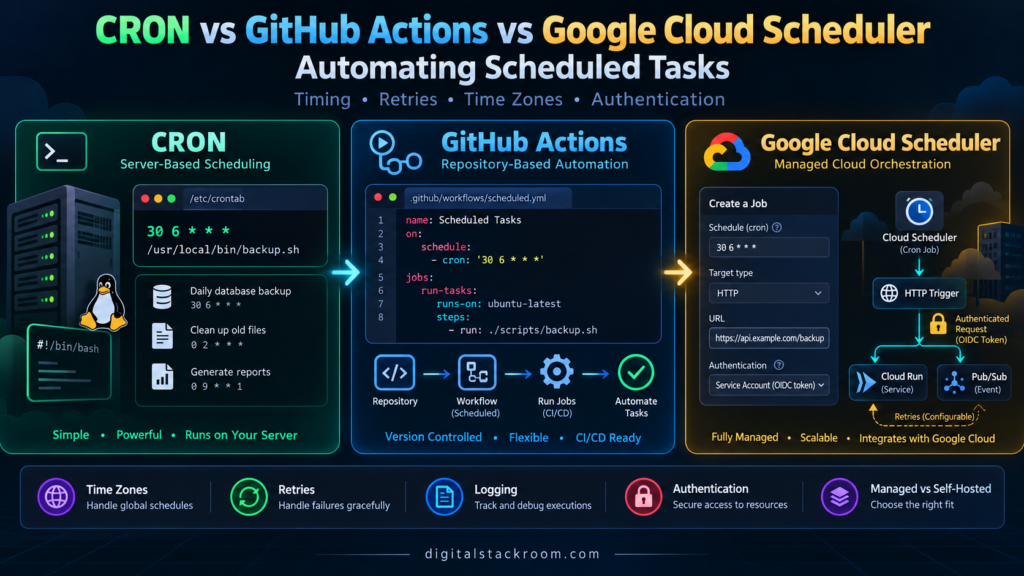
Scheduled automation often begins with a deceptively simple requirement:
Run this script every morning at 6:00.
At that point, almost any scheduler will work.
A line in crontab, a scheduled GitHub Actions workflow, or a Google Cloud Scheduler job can all trigger something at a specific time.
The differences become important later.
What happens if the server is down at 6:00?
What if yesterday’s job is still running when today’s execution begins?
Where are the logs?
How are credentials handled?
Can the job securely invoke a private cloud service?
What happens when the scheduled task fails?
And who notices when it silently stops running?
Those questions are more important than the cron expression itself.
This article compares three common approaches:
- traditional Linux/Unix CRON;
- GitHub Actions scheduled workflows;
- Google Cloud Scheduler.
All three solve the scheduling problem, but they belong to very different operational models.
Table of Contents
What Is a Scheduled Task?
A scheduled task is work that should start automatically at a predefined time or recurring interval.
Typical examples include:
Generate a report every morning
Refresh a cache every 30 minutes
Run a database cleanup every night
Check an external API every hour
Process files every weekday
Trigger a data pipeline once per day
Run automated validation every Sunday
The basic model is:
Schedule
   ↓
Trigger
   ↓
Task
   ↓
Result
For example:
06:00 every day
      ↓
Run reporting job
      ↓
Query database
      ↓
Generate report
      ↓
Send notification
This is one of the simplest forms of workflow automation. For a broader explanation of event-driven and scheduled workflows, see the DigitalStackRoom guide to What Is Workflow Automation?.
The Three Scheduling Models
Before comparing features, it helps to understand what each tool actually is.
CRON
CRON is a traditional Unix-style scheduling mechanism.
The cron daemon runs on a machine and evaluates configured schedules. When a schedule matches the current time, it launches the configured command.
Conceptually:
Linux Server
   │
   ├── cron daemon
   │
   └── crontab
          ↓
       Script
The machine itself is responsible for running the scheduler.
Cronie, a commonly used cron implementation on Linux systems, describes crond as the daemon responsible for running programs at scheduled times.
GitHub Actions
GitHub Actions is a workflow automation platform integrated with GitHub repositories.
A workflow can be triggered by repository activity such as:
push
pull request
release
manual dispatch
schedule
A scheduled workflow runs using GitHub Actions runners and is defined as YAML inside the repository.
Repository
    ↓
Workflow YAML
    ↓
GitHub Actions
    ↓
Runner
    ↓
Script / Build / Automation
Scheduled workflows use five-field POSIX cron syntax. GitHub currently supports an optional IANA time zone on the schedule, runs scheduled workflows from the latest commit on the default branch, and allows a minimum scheduled interval of five minutes.
Google Cloud Scheduler
Google Cloud Scheduler is a managed scheduling service.
Instead of running the scheduler yourself, Google manages the scheduling infrastructure and sends requests to a target when the schedule fires.
Supported target types include:
HTTP/S endpoint
Pub/Sub topic
App Engine service
A common architecture is:
Cloud Scheduler
      ↓
Authenticated HTTP request
      ↓
Cloud Run
      ↓
Application logic
The scheduler triggers the work; the actual business logic runs elsewhere.
Quick Comparison: CRON vs. GitHub Actions vs. Cloud Scheduler
| Area | CRON | GitHub Actions | Google Cloud Scheduler |
|---|---|---|---|
| Where scheduler runs | Your machine/server | GitHub infrastructure | Google Cloud |
| Best for | Server-local jobs | Repository automation | Cloud/service orchestration |
| Configuration | Crontab | YAML | Console, CLI or API |
| Five-field cron syntax | Yes | Yes | Yes |
| Time zone control | Implementation/system dependent | IANA timezone supported | Explicit timezone supported |
| Minimum interval | Typically 1 minute | 5 minutes | 1 minute with cron |
| Built-in logs/UI | Limited | Strong | Strong Cloud integration |
| Built-in retries | No general retry engine | Workflow logic can implement retries | Configurable retry policy |
| Authentication to HTTP service | Must build it | Secrets/tokens/workload identity | Service account + OIDC/OAuth |
| Machine must stay running | Yes | No | No |
| Repository integration | No | Excellent | No direct dependency |
| Cloud-native orchestration | Limited | Possible | Excellent |
| At-least-once semantics | Depends on implementation/job | Workflow event model | Explicitly at least once |
| Operational ownership | High | Medium | Low for scheduler itself |
The right choice is therefore not simply:
Which one supports cron syntax?All three do.
The real question is:
Where should this automation live?Understanding CRON Syntax
Traditional cron schedules generally contain five time fields followed by a command.
┌──────────── minute
│ ┌────────── hour
│ │ ┌──────── day of month
│ │ │ ┌────── month
│ │ │ │ ┌──── day of week
│ │ │ │ │
* * * * *
For example:
30 6 * * *means:
06:30 every dayAnother example:
0 9 * * 1-5means:
09:00 Monday through FridayCronie supports the standard five time fields along with ranges, lists and step values. It also supports extensions such as @daily, @weekly, @monthly and @reboot.
Setting Up a CRON Job
Suppose we have:
/home/app/scripts/daily_report.pyOpen the user’s crontab:
crontab -eThen add:
30 6 * * * /usr/bin/python3 /home/app/scripts/daily_report.pyThe script should now run every day at 06:30 according to the cron environment and configured time zone.
A production entry should usually capture output somewhere useful.
30 6 * * * /usr/bin/python3 /home/app/scripts/daily_report.py >> /var/log/daily-report.log 2>&1Now both standard output and standard error are appended to:
/var/log/daily-report.logCRON Runs with a Different Environment Than Your Interactive Shell
This catches people surprisingly often.
A command works perfectly when you run:
python3 report.pyfrom your terminal.
Cron runs it and fails.
The reason may be the environment.
A cron job does not necessarily inherit the same:
PATH
working directory
shell configuration
virtual environment
environment variables
that you have in an interactive shell.
For that reason, I prefer absolute paths in cron entries.
Instead of:
python report.pyuse:
/usr/bin/python3 /opt/reporting/report.pyIf the job requires a specific working directory:
30 6 * * * cd /opt/reporting && /usr/bin/python3 report.py >> /var/log/report.log 2>&1The more assumptions the scheduled command makes about your shell environment, the more likely the job is to work manually and fail under cron.
CRON and Time Zones
Traditional cron normally evaluates schedules using the machine’s configured environment and the behavior of the installed cron implementation.
Cronie also supports:
CRON_TZinside the crontab.
For example:
CRON_TZ=Asia/Kolkata

30 6 * * * /opt/jobs/report.sh
Cronie documents CRON_TZ as the timezone used to interpret that crontab’s schedule.
Time zones become particularly important when daylight saving time is involved.
Cronie documents that during a daylight-saving transition, a local time that does not exist may not run, while a repeated local time can cause a matching job to run twice.
For infrastructure jobs where wall-clock local time is not important, UTC is often easier to reason about.
What Happens If a CRON Job Takes Too Long?
Imagine:
Job schedule: every 10 minutes
Job runtime: 18 minutes
A basic cron configuration does not automatically guarantee that only one copy is running.
That means:
10:00 → Job A starts
10:10 → Job B starts
10:18 → Job A finishes
10:20 → Job C starts
You now have overlapping executions.
That may be harmless for a read-only report.
It may be disastrous for a migration, billing job, cleanup operation, or file processor.
One common Linux technique is flock.
*/10 * * * * flock -n /tmp/report.lock /opt/jobs/report.shThe new invocation exits if another process already owns the lock.
Another design is to make the job itself idempotent and use database-level locking or job-state tracking.
Scheduling and concurrency control are separate problems.
CRON Does Not Automatically Become a Distributed Scheduler
CRON is excellent because it is simple.
But that simplicity changes once you have:
multiple servers
auto-scaling instances
containers
ephemeral VMs
Kubernetes workloads
multi-region deployments
If the same crontab exists on three servers:
Server A → runs job
Server B → runs job
Server C → runs job
You may unintentionally execute the task three times.
At that point, a managed scheduler or dedicated distributed scheduling system is usually easier to reason about.
When CRON Is the Right Choice
CRON remains an excellent solution when the work belongs naturally to one stable machine.
Examples include:
Rotate local files
Run a maintenance script
Clean temporary directories
Backup a local database
Generate a machine-specific report
Perform predictable internal administration
It is hard to beat:
one line
one server
one script
when that really is the entire requirement.
Scheduling Tasks with GitHub Actions
GitHub Actions becomes attractive when the scheduled work belongs to a repository.
Create:
.github/workflows/daily-job.ymlA basic scheduled workflow looks like:
name: Daily Automation

on:
  schedule:
    - cron: "30 6 * * *"
      timezone: "Asia/Kolkata"

  workflow_dispatch:

jobs:
  run-task:
    runs-on: ubuntu-latest

    steps:
      - name: Checkout repository
        uses: actions/checkout@v4

      - name: Set up Python
        uses: actions/setup-python@v5
        with:
          python-version: "3.12"

      - name: Run scheduled script
        run: python scripts/daily_report.py
The workflow_dispatch trigger is useful because it allows the same workflow to be started manually when you need to test or rerun it.
GitHub’s current workflow syntax allows scheduled jobs to specify an IANA timezone such as America/New_York; without that field, the schedule defaults to UTC.
Scheduled GitHub Actions Run from the Default Branch
There is an important behavioral detail.
A scheduled workflow runs from the latest commit on the repository’s default branch.
That means a workflow that exists only on:
feature/scheduled-reportshould not be expected to run from that branch on schedule.
The scheduled workflow needs to exist in the appropriate default-branch state.
GitHub Actions Has a Five-Minute Minimum Schedule
The shortest supported interval for a GitHub Actions scheduled workflow is currently:
once every 5 minutesSo this makes sense:
schedule:
  - cron: "*/5 * * * *"
Using GitHub Actions as a second-by-second or near-real-time scheduler does not.
If your application needs:
every 10 secondsyou need a different architecture.
GitHub Scheduled Workflows Are Not Precision Timers
A scheduled workflow should not be treated like a hard real-time clock.
GitHub explicitly notes that scheduled events can be delayed during high Actions load. The beginning of an hour is one of the periods where load can be high, and GitHub warns that sufficiently delayed queued scheduled jobs may even be dropped.
For that reason, instead of always choosing:
0 * * * *you might choose:
17 * * * *if nothing requires the task to run precisely at the top of the hour.
For tasks like:
nightly cleanup
daily report
repository maintenance
dependency checks
scheduled testing
a small delay normally does not matter.
For something that must happen at an exact business cutoff, GitHub Actions may not be the right scheduler.
Public Repository Scheduled Workflows Can Be Automatically Disabled
There is another operational detail worth knowing.
For public repositories, GitHub automatically disables scheduled workflows after 60 days with no repository activity.
That is reasonable for inactive open-source repositories.
It also means a scheduled workflow should not be treated as an invisible permanent service without monitoring.
Preventing Overlapping GitHub Actions Runs
GitHub Actions allows concurrent workflow runs by default.
If your daily task must never run twice at the same time, use workflow concurrency controls.
For example:
name: Daily Automation

on:
  schedule:
    - cron: "30 6 * * *"
      timezone: "Asia/Kolkata"

  workflow_dispatch:

concurrency:
  group: daily-automation
  cancel-in-progress: false

jobs:
  run-task:
    runs-on: ubuntu-latest

    steps:
      - uses: actions/checkout@v4

      - name: Run task
        run: ./scripts/run-daily-job.sh
GitHub documents that workflow and job runs can execute concurrently by default and provides the concurrency mechanism to control that behavior.
Concurrency policy should be designed around the task itself.
For some workflows, cancelling an outdated run is desirable.
For financial processing or stateful batch work, cancelling an in-progress run may be the last thing you want.
Secrets in GitHub Actions
A scheduled job often needs credentials.
Do not write:
env:
  API_KEY: "actual-production-key"
inside the workflow.
Instead, store secrets through GitHub’s secret management and reference them through the workflow.
Conceptually:
env:
  API_KEY: ${{ secrets.API_KEY }}
If the workflow needs to access a cloud provider, modern workload identity or OIDC-based federation is often preferable to storing long-lived cloud credentials.
The scheduler should not become a reason to scatter permanent access keys across repositories.
When GitHub Actions Is the Right Choice
GitHub Actions is especially strong when scheduling and source code naturally belong together.
Examples include:
Run tests nightly
Build documentation
Refresh generated files
Check dependencies
Open or close maintenance issues
Generate repository reports
Run periodic data-validation scripts
Publish static content
Perform scheduled CI/CD operations
The workflow, code and history all live near each other.
That is a substantial operational advantage.
Scheduling Tasks with Google Cloud Scheduler
Google Cloud Scheduler takes a different approach.
It does not normally run your business code itself.
Instead, it triggers another target.
For example:
Cloud Scheduler
      ↓
HTTP POST
      ↓
Cloud Run
      ↓
Generate report
or:
Cloud Scheduler
      ↓
Pub/Sub
      ↓
Subscriber
      ↓
Data pipeline
Cloud Scheduler officially supports HTTP/S endpoints, Pub/Sub topics and App Engine targets.
Creating a Cloud Scheduler HTTP Job
A simple job can be created with gcloud.
gcloud scheduler jobs create http daily-report \
  --location=asia-south1 \
  --schedule="30 6 * * *" \
  --time-zone="Asia/Kolkata" \
  --uri="https://example-service.run.app/run-report" \
  --http-method=POST
This tells Cloud Scheduler to make a POST request to the target every day at 06:30 in the configured time zone.
Cloud Scheduler supports Unix-cron-style schedules and allows a timezone to be configured separately. If a timezone is not provided through the CLI, the default is UTC.
Securely Calling Cloud Run from Cloud Scheduler
A production Cloud Run service should not necessarily be made public just so that a scheduler can call it.
Cloud Scheduler can attach authentication tokens to HTTP requests by using a service account.
For a Cloud Run-style HTTP target, an OIDC token is normally appropriate.
For example:
gcloud scheduler jobs create http daily-report \
  --location=asia-south1 \
  --schedule="30 6 * * *" \
  --time-zone="Asia/Kolkata" \
  --uri="https://example-service.run.app/run-report" \
  --http-method=POST \
  --oidc-service-account-email="scheduler-invoker@example-project.iam.gserviceaccount.com"
The service account must have the appropriate permission on the target. For Cloud Run, Google documents the roles/run.invoker role for this pattern.
Cloud Scheduler can use either an OIDC ID token or an OAuth access token. Google recommends OIDC for most authenticated HTTP targets, while Google APIs hosted on *.googleapis.com generally expect OAuth access tokens.
This is a major advantage over putting a shared password directly into a scheduler command.
Cloud Scheduler Has Explicit Delivery Semantics
Cloud Scheduler is designed for at-least-once delivery.
Google explicitly notes that, in rare circumstances, more than one invocation can occur for a single scheduled execution. The target should therefore be idempotent.
That means this is unsafe:
Scheduler fired
   ↓
Always charge customer ₹1,000
unless there is a deduplication or idempotency mechanism.
A better design is:
Scheduler fired
   ↓
Create/run job for schedule ID
   ↓
Check whether schedule ID was already processed
   ↓
Process once
This is the same principle that applies to webhook delivery.
For a deeper example of idempotency and duplicate-event handling, see the DigitalStackRoom guide to Setting Up Webhook Listeners in Express.js.
Cloud Scheduler Can Retry Failed Jobs
Unlike traditional cron, Cloud Scheduler has a configurable retry policy.
When a target does not successfully acknowledge a job, Cloud Scheduler can retry it using configurable backoff behavior. Google exposes controls including:
maximum retry attempts
maximum retry duration
minimum backoff
maximum backoff
maximum doublings
That makes the failure model much more explicit.
But retries introduce another requirement:
Your handler must be safe to run again.Otherwise:
first request partially succeeds
        ↓
request times out
        ↓
scheduler retries
        ↓
side effect happens twice
Retries and idempotency belong together.
Cloud Scheduler Does Not Mean Unlimited Parallel Runs
Cloud Scheduler also has execution behavior worth understanding.
Google documents that if a job is still running or awaiting a response, later scheduled executions may be skipped until the current execution completes or times out. Google nevertheless recommends making handlers idempotent because multiple requests can occur in rare circumstances.
That is different from assuming every cron tick creates an independent concurrent worker.
If the work itself is long-running, it is often better for the Scheduler request to enqueue or start the work quickly rather than keeping the Scheduler HTTP request open for the entire processing duration.
Separate Scheduling from Processing
This is one of the most useful architecture improvements.
Instead of:
Scheduler
   ↓
Run 45-minute job directly
consider:
Scheduler
   ↓
Create message/job
   ↓
Return success
   ↓
Worker processes job
For example:
Cloud Scheduler
      ↓
Pub/Sub
      ↓
Worker
or:
Cloud Scheduler
      ↓
HTTP endpoint
      ↓
Queue
      ↓
Worker
This makes the scheduler responsible for one thing:
When should work begin?and the worker responsible for:
How should work be executed?That separation becomes increasingly valuable as the workload grows.
What About Daylight Saving Time?
Scheduling by local wall-clock time creates edge cases.
Cloud Scheduler documents that DST changes can cause scheduling anomalies when using time zones that observe daylight saving time and recommends UTC when a very exact cadence is required.
GitHub Actions now also supports explicit IANA timezones and documents how scheduled workflows behave around DST transitions.
Traditional cron implementations have their own DST behavior; Cronie documents that nonexistent times can be skipped and repeated times can result in duplicate execution.
The practical question is:
Do you care about wall-clock time?
If the business requirement is:
Run at 9:00 AM New York timeuse the appropriate named timezone and understand DST.
If the requirement is:
Run once every 24 hours at a stable infrastructure timeUTC is usually easier.
Scheduled Jobs Should Be Idempotent
No matter which scheduler you use, a robust job should ideally tolerate being invoked more than once.
Imagine a daily ingestion job:
Fetch yesterday's file
      ↓
Insert rows
If the task runs twice, naive code may duplicate every row.
A safer pipeline could use:
job_date
source_file_id
record_id
as uniqueness controls.
For example:
CREATE TABLE job_runs (
    job_name VARCHAR(100) NOT NULL,
    scheduled_date DATE NOT NULL,
    started_at TIMESTAMP NOT NULL,
    completed_at TIMESTAMP,
    status VARCHAR(20) NOT NULL,

    PRIMARY KEY (job_name, scheduled_date)
);
Before processing:
daily-import + 2026-10-24the worker can determine whether that logical run has already completed.
The scheduler should trigger work.
The application should protect the integrity of that work.
Never Assume a Schedule Means Success
This is a subtle but important distinction:
Scheduled successfullydoes not mean:
Completed successfully.Your monitoring should distinguish:
Trigger created
Job started
Job completed
Job failed
Job retried
Job skipped
Job timed out
For CRON, you may need to build most of that yourself.
GitHub Actions provides run history and logs.
Cloud Scheduler integrates with Google Cloud’s logging and monitoring ecosystem, while the target service should expose its own application metrics.
A Simple Job Logging Pattern
Even a small script can record useful metadata.
import logging
import sys
from datetime import datetime, timezone

logging.basicConfig(
    level=logging.INFO,
    format="%(asctime)s %(levelname)s %(message)s",
)

def run():
    logging.info("daily-report started")

    try:
        # Business logic here
        logging.info("daily-report completed")
    except Exception:
        logging.exception("daily-report failed")
        raise

if __name__ == "__main__":
    run()
A scheduler is far easier to support when failures produce structured, searchable evidence instead of disappearing silently.
Handling External API Failures
Scheduled jobs often call APIs.
That creates a second scheduling problem:
Your job runs on time
        ↓
External API returns 429
or:
External API returns 503Retrying the entire scheduled task immediately may not be the correct response.
Instead, use a bounded retry strategy appropriate for the downstream service.
For API retry design, see:
REST API Rate Limiting and Exponential Backoff in Python
The scheduler decides when the job begins.
Your application still needs to decide how transient failures are handled.
Scheduled File Processing
Another common use case is:
Every night
   ↓
Find new JSON/CSV files
   ↓
Validate
   ↓
Transform
   ↓
Load
That architecture works with all three schedulers.
For example:
CRON
→ local filesystem processor
or:
GitHub Actions
→ repository data transformation
or:
Cloud Scheduler
→ Cloud Run processor
→ Cloud Storage
If your scheduled workload involves nested JSON, CSV transformation, schema validation or high-volume file processing, see:
Automating File Processing with Python: Parsing Complex JSON and Nested CSVs at Scale
Scheduling Browser Automation
You can also use a scheduler to trigger browser-based validation.
For example:
Every morning
      ↓
Open production dashboard
      ↓
Log in
      ↓
Validate critical metrics
      ↓
Capture screenshot if validation fails
A GitHub Actions workflow can work well for lightweight browser checks.
A Cloud Scheduler job can instead trigger a dedicated browser automation service.
For the browser layer itself, see:
Playwright vs Selenium for Headless Browser Automation
The important architectural rule is to avoid confusing:
schedulerwith:
browser workerThey solve different problems.
Which Scheduler Should You Choose?
There is no universal winner.
Choose CRON when:
The job belongs to one stable Linux/Unix host.
Examples:
server maintenance
local backups
log cleanup
local file processing
small internal scripts
CRON gives you the least abstraction and the least infrastructure.
That is often a feature.
Choose GitHub Actions when:
The automation belongs naturally to a repository.
Examples:
nightly tests
scheduled CI/CD
repository maintenance
dependency checks
documentation generation
periodic validation
static site automation
You get version-controlled configuration, logs, runner infrastructure and tight source-code integration.
Choose Google Cloud Scheduler when:
The job is part of a cloud architecture.
Examples:
trigger Cloud Run
publish Pub/Sub events
start scheduled workflows
invoke authenticated HTTP services
run cloud data pipelines
orchestrate service-based automation
It is especially attractive when you want the scheduler itself to be managed separately from the machine that performs the work.
Decision Matrix
| Scenario | Recommended Starting Point |
|---|---|
| Clean temp files on one Linux VM | CRON |
| Run a local database backup | CRON |
| Execute nightly unit tests | GitHub Actions |
| Refresh generated repository files | GitHub Actions |
| Run scheduled code-quality checks | GitHub Actions |
| Trigger a private Cloud Run endpoint | Cloud Scheduler |
| Publish a scheduled Pub/Sub event | Cloud Scheduler |
| Start a cloud data workflow | Cloud Scheduler |
| Need second-level scheduling | None of these as a simple cron solution |
| Need durable one-time delayed task | Consider a task/queue service instead |
| Need complex DAG orchestration | Consider a workflow/orchestration platform |
Google specifically notes that Cloud Scheduler is designed for repeating work; for a single future task, Cloud Tasks may be a more appropriate Google Cloud service.
Don’t Turn CRON into a Workflow Engine
A common evolution looks like this:
cron
 ↓
script A
 ↓
script B
 ↓
API call
 ↓
wait
 ↓
script C
 ↓
database
 ↓
email
 ↓
retry script B
At some point, the problem is no longer:
Run something at 6:00.It has become:
Coordinate a workflow.That may require:
dependencies
retries
state
branching
approval
parallelism
backfills
observability
A scheduler is not automatically a workflow orchestrator.
Knowing when to move beyond cron is just as important as knowing how to write a cron expression.
A Production Scheduling Architecture
For important scheduled workloads, a useful architecture is:
Scheduler
    ↓
Trigger endpoint / queue
    ↓
Create job record
    ↓
Worker
    ↓
Business logic
    ↓
Validation
    ↓
Persist result
    ↓
Metrics + logs + alerting
The scheduler should not carry every responsibility.
A mature system separates:
Schedule
Execution
State
Retries
Validation
Observability
That separation makes the system easier to recover when something inevitably goes wrong.
Common Mistakes
Assuming the machine will always be available
A local CRON job depends on the machine and cron daemon being available.
If the machine disappears, so does your scheduler.
Using GitHub Actions for exact-time business events
Scheduled Actions can be delayed under load.
Use them for workflows that tolerate some scheduling variance.
Making a Cloud Scheduler target public unnecessarily
Use service-account authentication when the target supports it instead of exposing internal operations to unauthenticated callers.
Ignoring duplicate execution
Cloud Scheduler explicitly uses at-least-once delivery semantics.
Scheduled jobs should be designed with idempotency in mind.
Assuming every schedule supports the same syntax
Cron implementations differ.
GitHub Actions, Cloud Scheduler and Linux cron overlap heavily in syntax, but platform-specific extensions and restrictions are not identical.
Forgetting time zones
A schedule that says:
30 6 * * *is incomplete operationally until you know:
6:30 in which timezone?Final Comparison
If I were deciding today, I would think about these tools in three layers.
CRON is closest to the machine.
It is simple, reliable for stable server-local tasks, and requires almost no infrastructure. In exchange, you own the host, logs, failure handling, locking and operational visibility.
GitHub Actions is closest to the repository.
It is ideal when the scheduled job is part of software development, CI/CD, maintenance or repository automation. It gives you good visibility and version-controlled workflow configuration, but scheduled execution is not intended as a hard real-time service.
Google Cloud Scheduler is closest to service-oriented cloud architecture.
It is particularly useful for triggering HTTP services, Pub/Sub and cloud workloads without maintaining a scheduling server. Authentication, retries and cloud integration are stronger, but the target still needs to be idempotent and operationally sound.
A practical rule of thumb is:
Machine task?
→ CRON

Repository task?
→ GitHub Actions

Cloud service task?
→ Google Cloud Scheduler
That rule will not cover every system, but it is a much better starting point than choosing whichever scheduler you already know.
The cron expression is usually the easiest part.
The real engineering work is deciding what happens when the scheduled run is late, duplicated, overlapping, interrupted or completely missed.
Official Documentation and Technical References
The platform behavior in this guide was checked against current official documentation.
CRON / Cronie
Cronie Project — Official Repository
Cronie crontab(5) Documentation
GitHub Actions
GitHub Actions — Workflow Syntax and Scheduled Workflows
GitHub Actions — Events That Trigger Workflows
GitHub Actions — Workflow Concurrency
GitHub Actions — Scheduled Workflow Troubleshooting
Google Cloud Scheduler
Google Cloud Scheduler — Overview
Google Cloud Scheduler — Cron Format and Time Zones
Google Cloud Scheduler — Create and Manage Jobs