
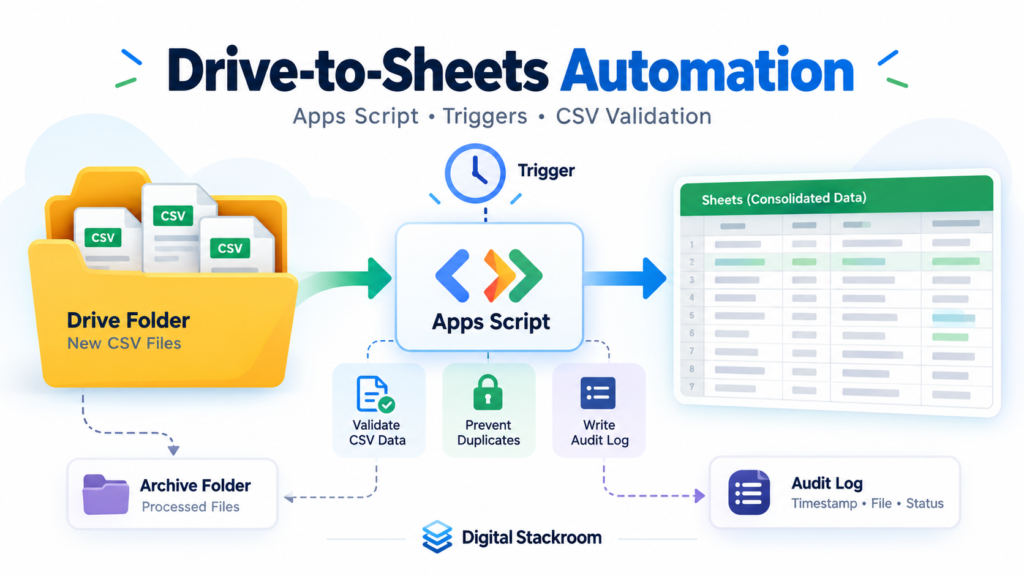
Moving a CSV file from Google Drive into Google Sheets sounds like a small automation problem.
At first, it usually is.
A file lands in a folder.
A script reads it.
Rows are appended to a spreadsheet.
Done.
The trouble starts when that script is expected to run every day without someone watching it.
Then the real questions appear:
- What happens when the trigger fires twice?
- What happens if the CSV contains malformed rows?
- How do we know whether a file was already imported?
- What happens if the sheet write succeeds but archiving fails?
- Can two trigger executions import the same file simultaneously?
- What happens when a six-minute Apps Script execution limit is reached?
- Who owns the trigger?
- What if the trigger owner leaves the organization?
- Can the same pattern work with Shared Drives?
- How do we investigate a failed import three weeks later?
Those questions are more important than the line of code that reads the CSV.
In this guide, we will build a practical Drive-to-Sheets ingestion workflow using Google Apps Script.
The workflow will:
- poll a Google Drive folder on a time-driven trigger
- identify CSV files
- validate the expected schema
- parse CSV safely
- prevent overlapping executions
- record every import in an audit ledger
- write rows to Google Sheets in batches
- include source-file lineage on every imported row
- avoid blindly retrying ambiguous failures
- archive successfully processed files
- expose enough logging to troubleshoot unattended executions
The design is intentionally aimed at internal operational workflows rather than a one-off personal script.
Table of Contents
What We Are Building
Assume another system drops CSV files into a Google Drive folder.
For example:
Drive
│
└── Incoming Orders
    │
    ├── orders_2026_10_20.csv
    ├── orders_2026_10_21.csv
    └── orders_2026_10_22.csv
Each file follows this structure:
order_id,customer_name,region,amount,status
ORD-1001,Asha,South,2500.00,OPEN
ORD-1002,Daniel,West,1840.50,CLOSED
ORD-1003,Meera,North,990.00,PENDING
Our Apps Script will run periodically.
The workflow becomes:
Time Trigger
     ↓
Acquire Lock
     ↓
Check Incoming Drive Folder
     ↓
Find CSV Files
     ↓
Check Import Ledger
     ↓
Validate CSV
     ↓
Mark Import PROCESSING
     ↓
Batch Write to Google Sheets
     ↓
Mark Import DONE
     ↓
Move File to Archive
The destination spreadsheet will contain two worksheets:
Data
Import_Log
Data contains the business rows.
Import_Log contains operational history.
That separation becomes extremely useful once the workflow begins running unattended.
Why Use Google Apps Script for This?
Apps Script works well when the workflow already lives inside Google Workspace.
You do not need to provision:
- a server
- a container
- a scheduler
- an OAuth backend
- a database driver
- a deployment pipeline
for relatively small Workspace automations.
Apps Script already provides built-in services for:
Google Drive
Google Sheets
Triggers
Properties
Locks
Logging
That makes it attractive for workflows such as:
- daily report ingestion
- survey exports
- vendor CSV uploads
- operations tracking
- reconciliation files
- team-maintained reference datasets
- small ETL pipelines
But Apps Script is not an unlimited data-processing platform.
The architecture should reflect its execution and quota limits.
There Is No Simple “New File Added to Drive Folder” Apps Script Trigger
This is an important design point.
Apps Script supports installable triggers for events such as:
- spreadsheet edits
- spreadsheet changes
- form submissions
- document opens
- calendar updates
- time-driven schedules
But there is no general Apps Script installable trigger that simply says:
When a new file appears in this Drive folder,
run my function.
For a general Drive folder ingestion workflow, the usual Apps Script pattern is therefore:
Drive Folder
      ↑
periodically polled by
      ↑
Time-Driven Trigger
For example:
Every 10 minutesIf your system genuinely requires near-real-time Drive change notifications, Google Drive API push notifications are a better architecture. Those require an HTTPS webhook endpoint and are outside the simple Apps Script-only pattern used in this article.
For moderate internal workflows, polling every few minutes is often simpler.
Why We Need an Installable Trigger
Apps Script has both simple and installable triggers.
A simple trigger such as:
function onOpen() {
}
runs with significant authorization restrictions.
A Drive-to-Sheets workflow needs access to:
- Drive folders
- Drive files
- another spreadsheet
- file movement
These require authorization.
We therefore use an installable time-driven trigger.
Another important detail:
An installable trigger runs under the Google account that created the trigger.
That account must retain permission to:
- read the source folder
- modify the archive folder
- edit the destination spreadsheet
For business-critical workflows, avoid making a personal employee account the undocumented single point of failure.
Where organizational policy allows it, use a dedicated Workspace automation identity whose ownership and lifecycle are managed by the team.
Project Architecture
Even Apps Script benefits from separating responsibilities.
A small project might contain:
Code.gs
Config.gs
Import.gs
Ledger.gs
Validation.gs
Trigger.gs
The logical architecture is:
Trigger
   ↓
Workflow Controller
   ↓
Drive Reader
   ↓
CSV Validation
   ↓
Sheets Writer
   ↓
Import Ledger
For this tutorial, the functions can live in one Apps Script project, but keeping these responsibilities separate makes maintenance much easier.
Step 1: Create the Drive Folders
Create two folders:
Incoming Orders
Processed Orders
The first contains files waiting for ingestion.
The second becomes the archive.
Copy both folder IDs.
A Drive folder URL looks roughly like:
https://drive.google.com/drive/folders/1AbCdEfGhIj...The part after:
/folders/is the folder ID.
Step 2: Create the Destination Spreadsheet
Create a Google Sheet called:
Orders Data PipelineYou do not need to manually create the worksheets.
Our setup code will create:
Data
Import_Log
when required.
Copy the spreadsheet ID from its URL:
https://docs.google.com/spreadsheets/d/SPREADSHEET_ID/editStep 3: Store Configuration in Script Properties
Avoid scattering IDs throughout the application.
Apps Script provides PropertiesService for persistent key-value configuration.
Create this setup function:
function configureWorkflow() {
  PropertiesService
    .getScriptProperties()
    .setProperties({
      SOURCE_FOLDER_ID: 'PASTE_SOURCE_FOLDER_ID',
      ARCHIVE_FOLDER_ID: 'PASTE_ARCHIVE_FOLDER_ID',
      DESTINATION_SPREADSHEET_ID: 'PASTE_SPREADSHEET_ID'
    });
}
Replace the three placeholder values.
Run:
configureWorkflowonce manually.
Apps Script will request the necessary authorization.
Now create a configuration reader:
function getConfig_() {
  const properties =
    PropertiesService.getScriptProperties();

  const config = {
    sourceFolderId:
      properties.getProperty(
        'SOURCE_FOLDER_ID'
      ),

    archiveFolderId:
      properties.getProperty(
        'ARCHIVE_FOLDER_ID'
      ),

    spreadsheetId:
      properties.getProperty(
        'DESTINATION_SPREADSHEET_ID'
      )
  };

  for (const [
    key,
    value
  ] of Object.entries(config)) {

    if (!value) {
      throw new Error(
        `Missing configuration: ${key}`
      );
    }
  }

  return config;
}
Properties Service is useful for IDs and lightweight application configuration.
It should not automatically be treated as a general-purpose secrets vault.
Define the Expected CSV Schema
Our workflow expects:
const EXPECTED_HEADERS = [
  'order_id',
  'customer_name',
  'region',
  'amount',
  'status'
];
The destination table will also contain lineage columns.
const DATA_HEADERS = [
  'source_file_id',
  'source_file_name',
  'imported_at',
  'source_row_number',
  ...EXPECTED_HEADERS
];
Those metadata columns become extremely useful later.
Instead of seeing:
ORD-1001and wondering where it came from, we can trace it back to:
source_file_id
source_file_name
source_row_number
Build an Import Ledger
Create a second schema:
const LOG_HEADERS = [
  'file_id',
  'file_name',
  'status',
  'expected_rows',
  'rows_written',
  'started_at',
  'finished_at',
  'error_message',
  'run_id'
];
Each input file gets one operational record.
Possible statuses:
PROCESSING
DONE
FAILED
The ledger gives us a history such as:
| File | Status | Expected Rows | Rows Written |
|---|---|---|---|
| orders_2026_10_20.csv | DONE | 420 | 420 |
| orders_2026_10_21.csv | DONE | 397 | 397 |
| orders_2026_10_22.csv | FAILED | 510 | 0 |
This is much more useful than simply moving files between folders.
Create or Validate the Destination Worksheets
Use this helper:
function getOrCreateSheet_(
  spreadsheet,
  sheetName,
  headers
) {

  let sheet =
    spreadsheet.getSheetByName(
      sheetName
    );

  if (!sheet) {
    sheet =
      spreadsheet.insertSheet(
        sheetName
      );
  }

  if (sheet.getLastRow() === 0) {

    sheet
      .getRange(
        1,
        1,
        1,
        headers.length
      )
      .setValues([
        headers
      ]);

    sheet.setFrozenRows(1);

    return sheet;
  }

  const existingHeaders =
    sheet
      .getRange(
        1,
        1,
        1,
        headers.length
      )
      .getDisplayValues()[0];

  const expected =
    headers.join('\u0001');

  const actual =
    existingHeaders.join('\u0001');

  if (actual !== expected) {

    throw new Error(
      `Unexpected headers in sheet: ${sheetName}`
    );
  }

  return sheet;
}
This prevents the script from silently writing into a worksheet whose structure has changed.
That is a small check with a large operational benefit.
If you are building more extensive validation around analytical pipelines, see Automating Data Validation Pipelines with SQL Assertions.
Step 4: Prevent Two Trigger Executions From Running Together
Time-driven triggers can overlap.
For example:
10:00 trigger starts
↓
large file takes several minutes

10:10 trigger starts
Or a user may manually start the same function while the scheduled run is active.
Without protection, two executions can process the same source file.
Apps Script provides LockService.
Use a script-level lock:
function runDriveToSheetsImport() {

  const lock =
    LockService.getScriptLock();

  const acquired =
    lock.tryLock(5000);

  if (!acquired) {

    console.warn(
      'Another import execution is active.'
    );

    return;
  }

  try {

    runImportWorkflow_();

  } finally {

    lock.releaseLock();
  }
}
getScriptLock() prevents another execution of the same Apps Script project from entering the protected section concurrently.
This is different from duplicate-file protection.
We need both.
Step 5: Build the Main Workflow
Now create:
function runImportWorkflow_() {

  const config =
    getConfig_();

  const runId =
    Utilities.getUuid();

  const spreadsheet =
    SpreadsheetApp.openById(
      config.spreadsheetId
    );

  const dataSheet =
    getOrCreateSheet_(
      spreadsheet,
      'Data',
      DATA_HEADERS
    );

  const logSheet =
    getOrCreateSheet_(
      spreadsheet,
      'Import_Log',
      LOG_HEADERS
    );

  const sourceFolder =
    DriveApp.getFolderById(
      config.sourceFolderId
    );

  const archiveFolder =
    DriveApp.getFolderById(
      config.archiveFolderId
    );

  const iterator =
    sourceFolder.getFilesByType(
      MimeType.CSV
    );

  const files = [];

  while (iterator.hasNext()) {
    files.push(
      iterator.next()
    );
  }

  console.log(
    JSON.stringify({
      event:
        'import_run_started',
      runId:
        runId,
      discoveredFiles:
        files.length
    })
  );

  for (const file of files) {

    handleFile_({
      file,
      dataSheet,
      logSheet,
      archiveFolder,
      runId
    });
  }

  console.log(
    JSON.stringify({
      event:
        'import_run_finished',
      runId:
        runId
    })
  );
}
Notice that we copy the file iterator into an array first.
That keeps the processing loop independent of file movements that occur later.
Step 6: Look Up Previous Imports
Before processing a file, check whether its Drive file ID already appears in the ledger.
Do not use the filename as the identity.
Two different files can have the same name.
Google Drive file IDs are a better source identifier.
function getImportRecord_(
  logSheet,
  fileId
) {

  const lastRow =
    logSheet.getLastRow();

  if (lastRow < 2) {
    return null;
  }

  const rows =
    logSheet
      .getRange(
        2,
        1,
        lastRow - 1,
        LOG_HEADERS.length
      )
      .getValues();

  for (
    let index = 0;
    index < rows.length;
    index++
  ) {

    if (
      String(rows[index][0])
      === fileId
    ) {

      return {
        row:
          index + 2,

        status:
          String(
            rows[index][2]
          ),

        expectedRows:
          Number(
            rows[index][3]
          ) || 0,

        rowsWritten:
          Number(
            rows[index][4]
          ) || 0
      };
    }
  }

  return null;
}
For a modest internal workflow, reading an import ledger like this is reasonable.
If the ledger grows to hundreds of thousands of records, Google Sheets itself is becoming the wrong state store.
At that point, move workflow state into something like:
BigQuery
Cloud SQL
Firestore
another transactional datastore
depending on the workload.
Step 7: Handle Previously Seen Files Conservatively
Now create:
function handleFile_({
  file,
  dataSheet,
  logSheet,
  archiveFolder,
  runId
}) {

  const fileId =
    file.getId();

  const existing =
    getImportRecord_(
      logSheet,
      fileId
    );

  if (existing) {

    if (
      existing.status === 'DONE'
    ) {

      try {

        file.moveTo(
          archiveFolder
        );

      } catch (error) {

        console.error(
          JSON.stringify({
            event:
              'archive_retry_failed',
            fileId:
              fileId,
            error:
              String(error)
          })
        );
      }

      return;
    }

    console.warn(
      JSON.stringify({
        event:
          'ambiguous_import_skipped',
        fileId:
          fileId,
        status:
          existing.status
      })
    );

    return;
  }

  processNewFile_({
    file,
    dataSheet,
    logSheet,
    archiveFolder,
    runId
  });
}
Notice something deliberate here.
If the ledger says:
PROCESSINGor:
FAILEDwe do not blindly retry the file.
Why?
Because the previous execution may have written some or all of its rows before failing.
Automatically replaying it could create duplicates.
This is one of the differences between a robust ingestion workflow and a simple script.
Exactly-Once Processing Is Harder Than It Looks
Consider this sequence:
1. Read CSV
2. Append rows to Sheet
3. Mark file DONE
What happens if the script crashes after step 2 but before step 3?
The Sheet contains the data.
The ledger still says:
PROCESSINGIf we automatically rerun the file, duplicate rows may be created.
Now reverse the operations:
1. Mark file DONE
2. Append rows
What happens if the script fails after step 1?
The file is recorded as complete even though the data never arrived.
There is no transaction spanning:
Google Drive
+
Google Sheets
+
Apps Script Properties
So we should not claim magical exactly-once semantics where none exist.
Instead, this workflow uses:
Lineage
+
Locking
+
Import Ledger
+
Conservative Retry Behavior
+
Manual Reconciliation
That gives us a practical effectively-once operational pattern for moderate internal workflows without pretending Sheets is a transactional message system.
Step 8: Parse the CSV Correctly
Apps Script provides:
Utilities.parseCsv()Do not split CSV manually using:
line.split(',')because valid CSV can contain:
ORD-1001,"Smith, John",South,2500,OPENA comma inside a quoted field is not a column separator.
Use:
function parseCsvFile_(
  file
) {

  let content =
    file
      .getBlob()
      .getDataAsString(
        'UTF-8'
      );

  content =
    content.replace(
      /^\uFEFF/,
      ''
    );

  const rows =
    Utilities.parseCsv(
      content
    );

  if (
    !rows ||
    rows.length === 0
  ) {

    throw new Error(
      'CSV contains no rows.'
    );
  }

  return rows;
}
The BOM removal handles UTF-8 files that begin with a byte-order mark that would otherwise appear in the first header name.
Step 9: Validate the Header Before Writing Anything
Create:
function validateHeaders_(
  actualHeaders
) {

  const normalized =
    actualHeaders.map(
      value =>
        String(value).trim()
    );

  if (
    normalized.length
    !== EXPECTED_HEADERS.length
  ) {

    throw new Error(
      'Unexpected number of CSV columns.'
    );
  }

  for (
    let index = 0;
    index < EXPECTED_HEADERS.length;
    index++
  ) {

    if (
      normalized[index]
      !== EXPECTED_HEADERS[index]
    ) {

      throw new Error(
        `CSV header mismatch at column ${
          index + 1
        }. Expected "${
          EXPECTED_HEADERS[index]
        }" but received "${
          normalized[index]
        }".`
      );
    }
  }
}
This example intentionally expects exact column order.
That is easier to reason about than silently guessing a mapping.
If your source schema allows columns to move, create an explicit header-to-column mapping instead.
Do not silently depend on positional luck.
Validate Every Row Before the Sheet Write
A file should ideally fail validation before any business rows are appended.
First remove completely blank rows:
function removeBlankRows_(
  rows
) {

  return rows.filter(
    row =>
      row.some(
        value =>
          String(value)
            .trim() !== ''
      )
  );
}
Then validate row width and data types.
function normalizeRows_(
  rows
) {

  return rows.map(
    (row, index) => {

      if (
        row.length
        !== EXPECTED_HEADERS.length
      ) {

        throw new Error(
          `Invalid column count on CSV row ${
            index + 2
          }.`
        );
      }

      const [
        orderId,
        customerName,
        region,
        amountRaw,
        status
      ] = row;

      const amount =
        Number(amountRaw);

      if (
        !Number.isFinite(amount)
      ) {

        throw new Error(
          `Invalid amount on CSV row ${
            index + 2
          }.`
        );
      }

      return [
        safeText_(orderId),
        safeText_(customerName),
        safeText_(region),
        amount,
        safeText_(status)
      ];
    }
  );
}
The:
index + 2accounts for the CSV header being row 1.
Protect Against Spreadsheet Formula Injection
Google Sheets interprets a string beginning with:
=as a formula when written through setValues().
That matters if CSV values come from users or outside systems.
A malicious or accidental value such as:
=IMPORTDATA("...")should not automatically become executable spreadsheet logic when the column is supposed to contain ordinary text.
For text fields, use:
function safeText_(
  value
) {

  const text =
    value === null ||
    value === undefined
      ? ''
      : String(value);

  if (
    /^[=+\-@]/.test(text)
  ) {

    return "'" + text;
  }

  return text;
}
This helper is only being applied to fields that are expected to be text.
For known numeric fields such as:
amountwe explicitly parse the value as a number instead.
That distinction matters because blindly escaping every value beginning with - would also turn legitimate negative numbers into text.
Step 10: Create the Ledger Entry Before Writing the Data
Create:
function beginImport_({
  logSheet,
  file,
  expectedRows,
  runId
}) {

  const startedAt =
    new Date();

  logSheet.appendRow([
    file.getId(),
    safeText_(
      file.getName()
    ),
    'PROCESSING',
    expectedRows,
    0,
    startedAt,
    '',
    '',
    runId
  ]);

  return {
    row:
      logSheet.getLastRow(),
    startedAt:
      startedAt
  };
}
At this point, another future execution will see that this file has already entered the workflow.
Because the main workflow is protected by LockService, another simultaneous execution of this same script cannot race through the same protected import section.
Write Data in One Batch
Do not do this:
for (const row of rows) {
  sheet.appendRow(row);
}
Every Spreadsheet service interaction has overhead.
Instead, build the complete two-dimensional array in memory.
function buildDestinationRows_({
  file,
  rows
}) {

  const importedAt =
    new Date();

  return rows.map(
    (row, index) => [
      file.getId(),
      safeText_(
        file.getName()
      ),
      importedAt,
      index + 2,
      ...row
    ]
  );
}
Then write the complete block:
function appendRows_(
  sheet,
  rows
) {

  if (rows.length === 0) {
    return;
  }

  const startRow =
    sheet.getLastRow() + 1;

  sheet
    .getRange(
      startRow,
      1,
      rows.length,
      rows[0].length
    )
    .setValues(
      rows
    );
}
This follows one of the most important Apps Script performance principles:
Minimize calls to Google services and batch reads/writes wherever possible.
Step 11: Update the Import Status
Create:
function markImportDone_(
  logSheet,
  logRow,
  rowsWritten
) {

  logSheet
    .getRange(
      logRow,
      3
    )
    .setValue(
      'DONE'
    );

  logSheet
    .getRange(
      logRow,
      5
    )
    .setValue(
      rowsWritten
    );

  logSheet
    .getRange(
      logRow,
      7
    )
    .setValue(
      new Date()
    );

  logSheet
    .getRange(
      logRow,
      8
    )
    .setValue(
      ''
    );
}
And failure handling:
function markImportFailed_(
  logSheet,
  logRow,
  error
) {

  const message =
    String(
      error &&
      error.stack
        ? error.stack
        : error
    )
      .slice(
        0,
        2000
      );

  logSheet
    .getRange(
      logRow,
      3
    )
    .setValue(
      'FAILED'
    );

  logSheet
    .getRange(
      logRow,
      7
    )
    .setValue(
      new Date()
    );

  logSheet
    .getRange(
      logRow,
      8
    )
    .setValue(
      safeText_(
        message
      )
    );
}
Step 12: Put the File Processing Together
Now create the core function:
function processNewFile_({
  file,
  dataSheet,
  logSheet,
  archiveFolder,
  runId
}) {

  const parsed =
    parseCsvFile_(
      file
    );

  const headers =
    parsed[0];

  validateHeaders_(
    headers
  );

  let rows =
    parsed.slice(1);

  rows =
    removeBlankRows_(
      rows
    );

  rows =
    normalizeRows_(
      rows
    );

  const importState =
    beginImport_({
      logSheet,
      file,
      expectedRows:
        rows.length,
      runId
    });

  try {

    const destinationRows =
      buildDestinationRows_({
        file,
        rows
      });

    appendRows_(
      dataSheet,
      destinationRows
    );

    markImportDone_(
      logSheet,
      importState.row,
      rows.length
    );

  } catch (error) {

    markImportFailed_(
      logSheet,
      importState.row,
      error
    );

    console.error(
      JSON.stringify({
        event:
          'file_import_failed',
        fileId:
          file.getId(),
        fileName:
          file.getName(),
        runId:
          runId,
        error:
          String(error)
      })
    );

    return;
  }

  try {

    file.moveTo(
      archiveFolder
    );

  } catch (error) {

    /*
     * Data is already recorded as DONE.
     * Do not change it back to FAILED
     * simply because the archival move failed.
     *
     * A future run can retry the move.
     */

    console.error(
      JSON.stringify({
        event:
          'archive_move_failed',
        fileId:
          file.getId(),
        runId:
          runId,
        error:
          String(error)
      })
    );
  }

  console.log(
    JSON.stringify({
      event:
        'file_import_completed',
      fileId:
        file.getId(),
      fileName:
        file.getName(),
      rows:
        rows.length,
      runId:
        runId
    })
  );
}
There is an important design decision here.
The order is:
Write Data
   ↓
Mark DONE
   ↓
Archive File
If archival fails after the import is complete, the ledger still correctly says:
DONEOn the next execution, the script recognizes the file as already imported and only retries moving it.
It does not append the rows again.
What Happens When the Data Write Is Ambiguous?
There is still one unavoidable failure window.
Imagine:
setValues()
succeeds

↓

script crashes

↓

markImportDone()
never executes
The ledger may remain:
PROCESSINGwhile the data is already present.
Our script intentionally refuses to automatically reprocess that file.
Instead, the operator reconciles it.
This is safer than guessing.
Build a Reconciliation Helper
Because every imported row contains:
source_file_idwe can inspect how many rows for a source file are actually present.
function countRowsForFile_(
  dataSheet,
  fileId
) {

  const lastRow =
    dataSheet.getLastRow();

  if (lastRow < 2) {
    return 0;
  }

  const fileIds =
    dataSheet
      .getRange(
        2,
        1,
        lastRow - 1,
        1
      )
      .getValues();

  let count = 0;

  for (
    const row of fileIds
  ) {

    if (
      String(row[0])
      === fileId
    ) {

      count++;
    }
  }

  return count;
}
Now add:
function inspectImport(
  fileId
) {

  const config =
    getConfig_();

  const spreadsheet =
    SpreadsheetApp.openById(
      config.spreadsheetId
    );

  const dataSheet =
    spreadsheet
      .getSheetByName(
        'Data'
      );

  const logSheet =
    spreadsheet
      .getSheetByName(
        'Import_Log'
      );

  const record =
    getImportRecord_(
      logSheet,
      fileId
    );

  if (!record) {

    console.log(
      'No import record found.'
    );

    return;
  }

  const actualRows =
    countRowsForFile_(
      dataSheet,
      fileId
    );

  console.log(
    JSON.stringify({
      fileId:
        fileId,
      status:
        record.status,
      expectedRows:
        record.expectedRows,
      ledgerRowsWritten:
        record.rowsWritten,
      actualRows:
        actualRows
    })
  );
}
Now an operator can determine:
Case 1
expected_rows = 500
actual_rows = 500
status = PROCESSING
The batch probably landed and only the completion update failed.
Case 2
expected_rows = 500
actual_rows = 0
status = FAILED
The data probably never entered the destination.
Case 3
expected_rows = 500
actual_rows = 211
The state needs explicit cleanup and investigation before retrying.
This is why lineage columns are worth the extra storage.
Do Not Automatically Delete or Retry Ambiguous Imports
It is tempting to write:
if FAILED:
    retry
But failure does not necessarily mean:
nothing happenedDistributed workflows need to distinguish:
known failure before write

known success

unknown / ambiguous outcome
If the business process demands stronger transactional guarantees than this workflow can provide, the answer is not more complicated spreadsheet scripting.
Use a backend designed for transactions or durable message processing.
Install the Time-Driven Trigger
Create:
function installImportTrigger() {

  const handler =
    'runDriveToSheetsImport';

  const existing =
    ScriptApp
      .getProjectTriggers()
      .some(
        trigger =>
          trigger
            .getHandlerFunction()
          === handler
      );

  if (existing) {

    console.log(
      'Import trigger already exists.'
    );

    return;
  }

  ScriptApp
    .newTrigger(
      handler
    )
    .timeBased()
    .everyMinutes(
      10
    )
    .create();

  console.log(
    '10-minute import trigger created.'
  );
}
Apps Script’s clock-trigger builder supports recurring minute intervals of:
1
5
10
15
30
minutes.
Run:
installImportTriggeronce.
A Trigger Schedule Is Not an Exact Real-Time SLA
A time-driven Apps Script trigger should be treated as scheduled automation, not an exact event-processing clock.
Do not design a requirement such as:
Every CSV must appear in Sheets exactly ten minutes after it lands.
The trigger runs according to Apps Script scheduling behavior and platform availability.
For operational reporting, polling is usually fine.
For a latency-sensitive event pipeline, use a more appropriate event-driven architecture.
Trigger Ownership Matters More Than Most Tutorials Mention
Installable triggers execute using the authorization of the account that created them.
Consider this situation:
Automation created by:
employee.a@company.com

6 months later:
Employee A leaves
If that identity loses access to:
Drive
Sheets
Apps Script
the automation may stop working.
For production ownership, document:
- who created the trigger
- which account owns the Apps Script project
- which Drive folders it requires
- which spreadsheet it writes to
- who is responsible for failures
- how ownership is transferred
Automation without ownership documentation becomes technical debt surprisingly quickly.
Create an Operational Runbook
A small runbook might say:
Workflow
Drive folder:
Incoming Orders

Destination:
Orders Data Pipeline → Data

Archive:
Processed Orders

Trigger:
Every 10 minutes
Failure investigation
1. Open Apps Script → Executions
2. Inspect failed run
3. Open Import_Log
4. Locate file_id
5. Compare expected_rows with actual imported rows
6. Reconcile before retrying
That document may be more useful six months later than another 100 lines of code.
Use Apps Script Execution History
The Apps Script editor provides an:
Executionspage.
For each run you can inspect:
- execution status
- trigger type
- start time
- duration
- function
- errors
Common statuses include:
Completed
Failed
Timed out
This should be the first place to look when an unattended automation stops behaving as expected.
Use Structured Logs
Avoid logs such as:
console.log(
  'something failed'
);
Prefer useful operational context:
console.log(
  JSON.stringify({
    event:
      'csv_import_completed',
    fileId:
      fileId,
    rows:
      420,
    runId:
      runId
  })
);
Now you can search by:
runId
fileId
event
instead of manually reconstructing a sequence from vague messages.
Use Cloud Logging for More Serious Workflows
Apps Script supports:
- execution logs
- Cloud Logging
- Error Reporting
The lightweight execution log is useful while developing.
For multi-user or production-oriented applications, Google’s documentation recommends Cloud Logging when persistent, searchable logs are required.
With a standard Google Cloud project attached to the Apps Script project, Cloud Logging provides better filtering and investigation capabilities.
Avoid putting unnecessary personally identifiable information into application logs.
Respect Apps Script Execution Limits
Apps Script is intentionally constrained.
Current Apps Script documentation lists a general script execution limit of:
6 minutes per executionfor both consumer and Google Workspace accounts.
Trigger executions also consume daily trigger-runtime quotas.
Those quotas can change, so always verify the current official quotas rather than baking assumptions into architecture documentation.
This means a workflow that tries to ingest:
25 GB of CSV datathrough Apps Script into Google Sheets is not simply an optimization problem.
It is the wrong platform.
Add a Soft Runtime Guard for Larger Queues
One practical safeguard is to stop taking new files before reaching the hard platform timeout.
For example:
function runImportWorkflow_() {

  const started =
    Date.now();

  const MAX_RUNTIME_MS =
    4.5 * 60 * 1000;

  // ...

  for (const file of files) {

    if (
      Date.now() - started
      > MAX_RUNTIME_MS
    ) {

      console.warn(
        'Stopping before Apps Script timeout.'
      );

      break;
    }

    // Process file...
  }
}
This does not change Google’s actual runtime limit.
It simply gives the script time to finish the current bookkeeping and exit cleanly rather than being terminated unexpectedly near the platform ceiling.
The 4.5 minutes used here is an application safety margin, not a Google-defined requirement.
Batch Spreadsheet Calls Wherever Possible
This is slow:
for (let row = 0; row < 1000; row++) {

  sheet
    .getRange(
      row + 2,
      1
    )
    .setValue(
      values[row][0]
    );
}
This is much better:
sheet
  .getRange(
    2,
    1,
    values.length,
    values[0].length
  )
  .setValues(
    values
  );
The same principle applies to reads.
Prefer:
const values =
  sheet
    .getRange(
      2,
      1,
      1000,
      10
    )
    .getValues();
over 10,000 individual calls.
Network/service-bound operations are normally far more expensive than ordinary JavaScript operations inside the Apps Script runtime.
Do Not Call SpreadsheetApp.flush() Repeatedly Without a Reason
SpreadsheetApp.flush() forces pending spreadsheet changes to be applied.
It has legitimate uses.
It should not become:
for (...) {
  setValue(...);
  SpreadsheetApp.flush();
}
That defeats batching and can dramatically increase service interaction.
Let Apps Script batch spreadsheet operations unless your logic genuinely requires immediate application of pending changes.
Consider File Size Before Calling getBlob()
Our workflow loads each CSV into memory:
file
  .getBlob()
  .getDataAsString()
and then parses the entire file.
That is appropriate for small-to-moderate CSVs.
It is not streaming ingestion.
If incoming files routinely contain millions of rows, a better architecture is likely:
Drive / Cloud Storage
        ↓
BigQuery / Dataflow / Cloud Run
        ↓
Analytics Storage
with Google Sheets used as a reporting or operational interface rather than the primary ingestion engine.
For warehouse-side design patterns, see Designing Scalable Data Models in Google BigQuery: Partitioning, Clustering, and Cost Controls.
Google Sheets Is Not a Data Warehouse
It is easy to keep appending because the first few thousand rows work well.
Then the workbook gradually becomes:
slow
large
formula-heavy
difficult to audit
Use Sheets when the purpose is something like:
- operational review
- small reporting tables
- workflow coordination
- human-readable outputs
- moderate reference datasets
Do not automatically use it as the permanent storage layer for every historical event.
A common mature architecture is:
Drive Files
    ↓
Processing Layer
    ↓
BigQuery
    ↓
Curated Result
    ↓
Google Sheets
The spreadsheet contains only what humans actually need to work with.
What About Excel Files?
The code in this article intentionally processes:
CSVbecause Apps Script has a direct CSV parser:
Utilities.parseCsv()An .xlsx file is not CSV and cannot simply be passed to that method.
For Excel ingestion, you generally need an additional conversion or API workflow.
Do not rename:
file.xlsxto:
file.csvand expect it to become CSV.
Those are completely different file formats.
What About JSON Files?
JSON is straightforward to parse:
const object =
  JSON.parse(
    file
      .getBlob()
      .getDataAsString(
        'UTF-8'
      )
  );
But JSON-to-Sheets conversion requires an explicit schema.
For example, nested JSON:
{
  "customer": {
    "name": "Asha",
    "region": "South"
  }
}
does not inherently tell you which spreadsheet columns should be created.
Define a deterministic transformation layer before writing.
What About Shared Drives?
This article’s sample uses:
DriveAppand is best understood as a straightforward My Drive workflow.
Google explicitly notes that the built-in Drive service has limitations and recommends the Advanced Drive service for more complete functionality and Shared Drive support.
For enterprise Shared Drive workflows, use:
Advanced Drive Serviceor:
Drive APIand design permissions around the organization’s Shared Drive model.
Do not assume code tested against a user’s My Drive will have identical behavior in every Shared Drive scenario.
Poll Only the Folder You Need
Avoid:
DriveApp.getFiles()if your workflow only needs one folder.
That enumerates files across the user’s Drive.
Instead:
const folder =
  DriveApp.getFolderById(
    SOURCE_FOLDER_ID
  );

const files =
  folder.getFilesByType(
    MimeType.CSV
  );
Scope the scan to the operational source.
It is clearer and more efficient.
Do Not Use Filenames as Unique Keys
These can both exist:
orders.csv
orders.csv
in Google Drive.
A filename is metadata.
A Drive file ID is identity.
Store:
file_idin the ledger and imported data.
Use the filename only for readability.
What Happens If a File Is Replaced With a New Version?
That depends on how the upstream system performs the replacement.
If it uploads a new Drive file, that file receives a different ID and should be treated as a new source object.
If the content of an existing Drive file is updated while the file ID remains the same, a file-ID-only deduplication strategy will consider it previously processed.
Therefore, decide explicitly whether your business process means:
One import per Drive file objector:
Re-import whenever file contents changeThe latter requires version/change detection rather than only file-ID deduplication.
Do not leave that semantic choice undefined.
Add File Integrity Checks When Needed
For stronger ingestion controls, you can record additional metadata such as:
file_id
file_name
file_size
last_updated
or calculate a content digest when justified.
This can help identify unexpected replacements or duplicate payloads.
But a checksum is not automatically necessary for every small internal workflow.
Add the control when the business risk warrants it.
Separate Validation Errors From Infrastructure Errors
Imagine:
CSV header is wrongThat is a data-quality failure.
Now imagine:
Google Sheets API temporarily unavailableThat is an infrastructure/service failure.
Those should not necessarily be handled the same way.
Useful categories include:
| Failure Type | Example | Typical Response |
|---|---|---|
| Validation | Missing required column | Reject file |
| Business rule | Invalid status value | Reject/review |
| Authorization | Trigger owner lost Drive access | Operational incident |
| Quota | Apps Script service quota exceeded | Retry/re-architect |
| Timeout | Execution exceeded runtime | Split workload |
| Ambiguous write | Sheet write may have succeeded | Reconcile first |
This distinction improves both alerting and recovery.
A Failed File Should Not Block Every Other File
Suppose the folder contains:
file_a.csv — valid
file_b.csv — corrupt
file_c.csv — valid
If one bad file causes the entire run to terminate immediately, files C and later remain unnecessarily delayed.
You can wrap processing per file:
for (const file of files) {

  try {

    handleFile_({
      file,
      dataSheet,
      logSheet,
      archiveFolder,
      runId
    });

  } catch (error) {

    console.error(
      JSON.stringify({
        event:
          'unhandled_file_error',
        fileId:
          file.getId(),
        error:
          String(error)
      })
    );
  }
}
Whether to continue after an error is a business decision.
For independent files, continuing is often reasonable.
For files that must be processed in strict sequence, stopping may be safer.
Preserve Ordering Only If the Business Requires It
A folder iterator should not be treated as a guaranteed business queue.
If processing order matters, explicitly define ordering using metadata such as:
business date
sequence number
file timestamp
and sort the discovered files before processing.
Do not assume:
Drive folder visual orderequals:
workflow processing orderKeep the Source File Until the Import Is Confirmed
Do not move or delete the source file before the data write succeeds.
Unsafe:
Move file to archive
       ↓
Try import
       ↓
Import fails
Now the failed input is no longer sitting in the expected incoming queue.
The safer sequence is:
Validate
↓
Import
↓
Record DONE
↓
Archive
Never Permanently Delete Input Files Immediately
For operational workflows, archival is usually safer than deletion.
Keeping the source file allows:
- investigation
- replay after controlled cleanup
- auditing
- comparison with destination rows
Retention rules should follow organizational data policy, but deleting source evidence immediately after ingestion makes troubleshooting unnecessarily difficult.
Add a Custom Menu for Manual Operations
If the Apps Script project is bound to the destination spreadsheet, you can optionally add a menu.
function onOpen() {

  SpreadsheetApp
    .getUi()
    .createMenu(
      'Data Workflow'
    )
    .addItem(
      'Run Import Now',
      'runDriveToSheetsImport'
    )
    .addItem(
      'Install Trigger',
      'installImportTrigger'
    )
    .addToUi();
}
This is useful for operators.
But note that:
manual executionand:
installable trigger executioncan run under different user contexts.
The script-level lock still protects the shared workflow from overlapping executions of this project.
Avoid Sending an Email for Every Successful File
A workflow that imports 80 files per day should not automatically produce:
80 success emailsThat becomes noise.
Better notification patterns include:
Failures onlyor:
Daily summaryor:
Alert after N consecutive failuresIf you use MailApp, remember that Apps Script email operations have daily quotas.
Logging is not the same thing as alerting.
Monitor More Than “Did the Trigger Run?”
Useful workflow metrics include:
files_discovered
files_completed
files_failed
rows_imported
processing_duration
oldest_pending_file_age
A trigger can technically run successfully while importing:
0 filesfor three days because the source system stopped delivering data.
That is a business failure even though Apps Script itself is healthy.
Add a Freshness Check
For example, suppose at least one orders file should arrive every day.
A separate check can ask:
When was the last successful import?If:
last successful import > 26 hours agothe workflow can raise an alert.
This catches upstream silence.
Data validation is more than checking columns after a file arrives.
It also includes:
freshness
volume
completeness
which is why automated validation should sit alongside ingestion rather than after it.
Avoid Hard-Coding Business Rules Throughout the Script
Bad:
if (
  status !== 'OPEN' &&
  status !== 'CLOSED' &&
  status !== 'PENDING'
) {
}
repeated in five places.
Better:
const ALLOWED_STATUSES =
  new Set([
    'OPEN',
    'CLOSED',
    'PENDING'
  ]);
Then validate in one function.
As requirements change, centralized rules make the workflow easier to maintain and audit.
Treat the Script Like Production Code
Even though Apps Script runs in a browser-based editor, the project still deserves:
- clear function boundaries
- naming conventions
- comments explaining decisions
- source control
- testing
- ownership
- release discipline
Google provides clasp, the Apps Script command-line tool, for downloading and managing Apps Script projects locally.
For larger automations, keeping code only in the browser editor becomes limiting.
Keep Development and Production Separate
Avoid experimenting directly against:
Production Drive Folder
+
Production Spreadsheet
Use:
Incoming Orders - TEST
Orders Data Pipeline - TEST
with small controlled files.
The easiest way to test an ingestion bug is usually not with yesterday’s real operations data.
A Simple Test Matrix
Before installing the production trigger, test:
| Test | Expected Result |
|---|---|
| Valid CSV | Imported and archived |
| Empty CSV | Handled according to policy |
| Wrong header | Rejected |
| Invalid amount | Rejected |
| Duplicate file ID | Not imported twice |
| Filename containing commas | No issue |
| CSV field containing commas | Parsed correctly |
| CSV quoted field | Parsed correctly |
| Formula-like text | Stored as text |
| Two simultaneous runs | One obtains lock |
| Archive move failure | Data remains DONE |
| Ambiguous previous run | File not blindly retried |
This kind of testing catches far more practical defects than simply verifying that one happy-path file imports successfully.
When Apps Script Is the Right Tool
Apps Script is a strong fit when:
- the workflow primarily involves Google Workspace
- the data volume is moderate
- latency requirements are relaxed
- processing completes comfortably within execution limits
- Sheets is an appropriate destination
- the number of business rules is manageable
- deployment simplicity matters
Examples:
Daily operations file
Small vendor feed
Team-maintained reconciliation workflow
Survey export
Internal reporting pipeline
When I Would Move Beyond Apps Script
Consider Cloud Run, Cloud Functions, Dataflow, BigQuery, Workflows, or another backend architecture when:
- individual files become very large
- processing routinely approaches Apps Script timeout limits
- hundreds or thousands of files arrive continuously
- exactly-once guarantees are critical
- complex retry semantics are required
- event latency must be seconds rather than minutes
- transformation logic becomes CPU intensive
- multiple external systems are involved
- transactional state becomes important
- Sheets is no longer an appropriate destination
A useful progression is:
Apps Script
   ↓

Simple Workspace Automation

        ↓ growth

Cloud Service
   ↓
Durable Queue
   ↓
Transactional / Analytical Storage
The fact that Apps Script can automate something does not mean it should remain the architecture forever.
Apps Script vs an Internal Automation Console
A Drive-to-Sheets script is excellent for unattended automation.
But eventually an operations team may need:
View pending files
Retry failed import
Review validation issues
Cancel processing
Inspect audit history
Manage configuration
At that stage, a user-facing operational console may be appropriate.
The architecture in Building Internal Automation Consoles with Streamlit and Python covers the next layer: authenticated interfaces, business services, workflow state, background jobs, audit logs, and operational controls.
The two patterns can complement one another.
Apps Script handles lightweight Google Workspace automation.
A dedicated console handles increasingly complex operational workflows.
Connecting Sheets Automation to Analytics
A common mistake is to turn the operational spreadsheet into the organization’s permanent analytics database.
A better pattern may be:
Drive Files
     ↓
Apps Script
     ↓
Operational Sheet
     ↓
Validated Warehouse Table
     ↓
Analytics Dashboard
or, at larger scale:
Files
 ↓
Cloud Processing
 ↓
BigQuery
 ↓
Reporting Layer
For BigQuery modeling and cost controls, see Designing Scalable Data Models in Google BigQuery: Partitioning, Clustering, and Cost Controls.
For dashboard design principles, see How to Build Actionable Executive Dashboards: Layout Principles and Metric Design.
Production Checklist
Before enabling an unattended Drive-to-Sheets workflow, verify:
- source and archive folder IDs are configured correctly
- destination spreadsheet ID is correct
- expected CSV headers are explicitly defined
- malformed files fail before business data is written
- CSV is parsed using a proper CSV parser
- UTF-8 BOM is handled where necessary
- numeric fields are explicitly parsed
- text fields are protected against unwanted formula interpretation
- file ID, not filename, is used for source identity
- imported rows contain source lineage
- an import ledger exists
- overlapping runs are prevented with
LockService - completed files cannot be automatically imported twice
- ambiguous failures require reconciliation before retry
- spreadsheet writes are batched
- source files are archived only after confirmed import
- failed source files remain available for investigation
- trigger ownership is documented
- trigger creator has the required Drive and Sheets permissions
- execution history is monitored
- logs contain run IDs and file IDs
- runtime stays comfortably below Apps Script limits
- large workloads have an exit/re-architecture path
- Shared Drive workflows use the appropriate Drive API/service
- test and production folders are separated
- the team has a recovery runbook
Common Mistakes to Avoid
Using split(',') to Parse CSV
Quoted commas immediately break the parser.
Use:
Utilities.parseCsv()instead.
Appending One Row at a Time
This causes unnecessary Spreadsheet service calls.
Build the array first and use:
setValues()once.
Using the Filename as the Deduplication Key
Drive filenames are not unique.
Use:
file IDinstead.
Retrying Every Failure Automatically
An error does not prove that the previous write did nothing.
Reconcile ambiguous outcomes before replay.
Moving the File Before Writing the Sheet
The source file should remain available until processing is confirmed.
Ignoring Concurrent Trigger Runs
Use:
LockServicefor shared workflow state.
Assuming Sheets Writes Are Database Transactions
They are not.
Design explicit recovery and lineage.
Expecting an Apps Script Trigger to React Instantly to Drive Changes
Use a time-based poll for simple Apps Script workflows.
Use the Drive API notification architecture when true event-driven behavior is required.
Ignoring the Trigger Owner
The trigger runs using the creator’s authorization.
That identity is part of the production architecture.
Treating Google Sheets as Unlimited Storage
Once the workflow becomes large enough, move historical storage and transformation into systems designed for larger workloads.
Final Takeaway
The easy version of Drive-to-Sheets automation is:
Read CSV
↓
Append Rows
The production version is:
Scheduled Trigger
       ↓
Execution Lock
       ↓
Discover Source Files
       ↓
Check Import Ledger
       ↓
Validate Schema
       ↓
Validate Values
       ↓
Record PROCESSING
       ↓
Batch Write Rows
       ↓
Record DONE
       ↓
Archive Source
       ↓
Monitor + Reconcile
Most failures in internal automation do not happen because somebody forgot how to call:
SpreadsheetApp.openById()They happen because the workflow did not define what to do when a step succeeds halfway.
That is the architectural lesson worth keeping.
Use Apps Script when it gives you the right balance of simplicity and reliability.
Use Drive file IDs for lineage.
Use proper CSV parsing.
Use batch operations.
Use locks.
Track state.
Keep the original input.
Do not blindly retry ambiguous writes.
And once the workflow begins fighting the limits of Apps Script or Google Sheets, move the processing layer rather than adding increasingly complicated workarounds.
Related Digital Stackroom Guides
Automating Data Validation Pipelines: Writing SQL Assertion Checks Before Running Production Reports
Useful for extending the ingestion workflow with schema, completeness, null, freshness, volume, and business-rule validation before downstream reporting.
Building Internal Automation Consoles with Streamlit and Python: Architecture and Best Practices
Useful when lightweight scripts evolve into operator-facing systems requiring authentication, task management, audit logs, retries, background processing, and administrative controls.
Designing Scalable Data Models in Google BigQuery: Partitioning, Clustering, and Cost Controls
Useful when Drive and Sheets are no longer suitable as the main storage layer and the workflow needs scalable analytical storage.
How to Build Actionable Executive Dashboards: Layout Principles and Metric Design
Useful for separating operational ingestion from the reporting layer consumed by managers and business teams.
Official Sources and Further Reading
Google Apps Script — Installable Triggers
Official documentation for installable and time-driven triggers, their authorization model, restrictions, and trigger ownership behavior.
Google Apps Script — Simple Triggers
Explains simple-trigger restrictions, including limited authorization and execution behavior.
Google Apps Script — ClockTriggerBuilder
Reference for creating time-driven triggers using everyMinutes(), everyHours(), everyDays(), time zones, and other scheduling options.
Google Apps Script — Quotas for Google Services
Current execution-time, trigger-runtime, Properties, simultaneous-execution, and other Apps Script quotas. These limits can change, so production workflows should always verify this source.
Google Apps Script — Best Practices
Google’s guidance for reducing service calls, using batch spreadsheet operations, and designing around Apps Script execution limits.
Google Apps Script — Drive Service
Reference for Drive files and folders and guidance on when the Advanced Drive service is preferable, including Shared Drive scenarios.
Official API reference for retrieving files within specific Drive folders using methods such as getFiles() and getFilesByType().
Reference for built-in MIME-type constants including MimeType.CSV.
Google Apps Script — Utilities.parseCsv
Official reference for parsing CSV strings into two-dimensional JavaScript arrays.
Google Apps Script — Spreadsheet Range
Official reference for getValues(), setValues(), and other range-based Spreadsheet operations.
Google Apps Script — Lock Service
Documentation for ScriptLock, DocumentLock, and UserLock, used to prevent conflicting concurrent executions.
Google Apps Script — Properties Service
Official guidance for storing persistent script-, user-, and document-scoped key-value configuration.
Covers execution logs, Cloud Logging, exception logging, and Error Reporting for Apps Script projects.
Google Apps Script — Script Projects
Explains standalone and container-bound Apps Script projects, project settings, time zones, and project management.
Google Drive API — Notifications for Resource Changes
Use this when polling a Drive folder is no longer sufficient and the architecture requires push notifications to an external HTTPS webhook.
Implementation note: The example folder names, CSV schema, 10-minute schedule, 4.5-minute soft execution guard, archive strategy, import statuses, and operational recovery rules in this article are design examples, not Google-mandated requirements. Production values should be based on the workflow’s data volume, latency needs, source reliability, security model, organizational retention policies, and tolerance for duplicate or delayed processing.