
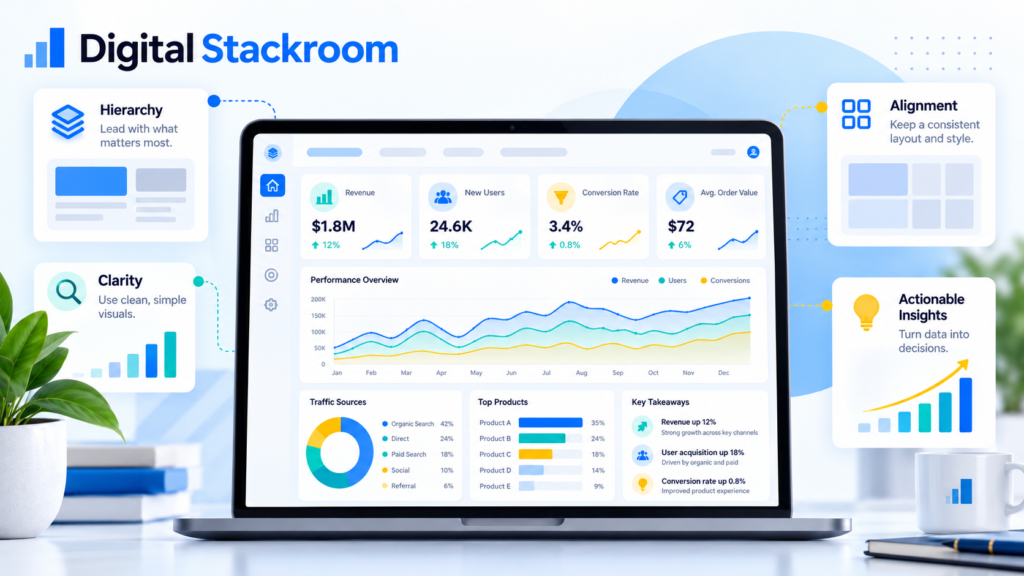
Most business intelligence dashboards fail not because the underlying SQL pipeline is broken, but because they overwhelm decision-makers with raw data instead of delivering actionable insight.
When business leaders open an executive report, they are rarely looking for granular row-level data or complex exploratory charts. They need immediate answers to three core questions:
- How is the business performing right now against target?
- Where is variance concentrating?
- What operational decision requires attention today?
Translating raw business metrics into an executive-ready Looker Studio report requires disciplined layout framing, strict metric hierarchies, and intentional query optimization.
Table of Contents
1. Problem Statement: Dashboard Bloat vs. Actionable Signal
A common mistake analytics teams make is treating an executive dashboard as an all-in-one data discovery sandbox.
Common Failure Pattern (The "Kitchen Sink" Dashboard):
• 25 unformatted scorecards with competing color schemes
• 6 complex multi-line charts without baseline targets
• Deep pagination tables with 40 visible columns
• No unified date filter controls or comparison periods
Result: Cognitive fatigue, zero executive trust, low adoption.
The Inverted Pyramid Principle
Executive reporting requires the Inverted Pyramid of Information Architecture:
┌────────────────────────────────────────────────────────┐
│   LEVEL 1: Core Vital Signs (Top 20% of Canvas)        │
│   • Macro KPIs (Revenue, CAC, ARR, Gross Margin)       │
│   • Absolute value + % Variance vs. Target/Prior Period│
├────────────────────────────────────────────────────────┤
│   LEVEL 2: Trend & Distribution (Middle 50% of Canvas) │
│   • Trajectory over time (12-Month Rolling, Run Rate)  │
│   • Dimensional breakdown (Region, Tier, Channel)      │
├────────────────────────────────────────────────────────┤
│   LEVEL 3: Contextual Detail & Exceptions (Bottom 30%) │
│   • Outlier tables (Underperforming accounts/regions)  │
│   • Drill-through links for operational teams          │
└────────────────────────────────────────────────────────┘
Designing reports around this top-to-bottom hierarchy ensures that an executive scrolling for 10 seconds extracts the high-level narrative, while operational managers can still drill into drivers.
2. Metric Design: Moving Beyond Raw Numbers
A raw metric without context is meaningless. Displaying $1,420,000 in revenue on a card fails to communicate whether that number represents an operational achievement or a quarterly shortfall.
The Anatomical Framework of an Executive KPI Card
Every primary scorecard must communicate four distinct dimensions:
┌─────────────────────────────────────────────────────────┐
│ Net Revenue (MTD)                                       │
│ $1,420,500                                              │
│ ▲ +12.4% vs Prior Period  |  ▼ -3.2% vs Budget Target    │
└─────────────────────────────────────────────────────────┘
  [Label]            ──► Strict business definition
  [Current Value]    ──► Standardized formatting (Currency/Abbreviated)
  [Temporal Context] ──► Period-over-Period (MoM, YoY)
  [Strategic Target] ──► Explicit variance against planned operational baseline
Creating Calculated Variance Fields in Looker Studio
Instead of relying solely on default scorecard comparison toggles, create robust calculated fields inside your Looker Studio data source to expose explicit dollar and percentage deltas.
SQL
-- 1. Metric: Revenue Variance to Target (Absolute)
SUM(Actual_Revenue) - SUM(Budget_Target)

-- 2. Metric: Revenue Achievement Rate (%)
SUM(Actual_Revenue) / NULLIF(SUM(Budget_Target), 0)

-- 3. Metric: Blended Customer Acquisition Cost (CAC)
SUM(Total_Marketing_Spend + Total_Sales_Overhead) / NULLIF(COUNT(DISTINCT New_Customer_ID), 0)
Data Hygiene Tip: Always wrap calculated denominators with
NULLIF(column, 0)to prevent dashboard calculation breaks caused by zero-division errors.
3. Visual Hierarchy & Canvas Layout Principles
Looker Studio’s freeform canvas allows drag-and-drop flexibility, which easily leads to visual clutter without a structural grid.
┌─────────────────────────────────────────────────────────────────────────┐
│ HEADER: Business Unit Name | Report Version | Global Date Range Filter  │
├─────────────────────────────────────────────────────────────────────────┤
│ [ KPI Card 1 ]   [ KPI Card 2 ]   [ KPI Card 3 ]   [ KPI Card 4 ]       │
│ ARR ($)          Net Retention    CAC Payback      Gross Margin %       │
├─────────────────────────────────────────────────────────────────────────┤
│ PRIMARY TREND (65% Width)               │ REGIONAL SPLIT (35% Width)    │
│ Time-series line chart tracking monthly │ Horizontal bar chart ranking  │
│ revenue against target forecast line    │ performance across markets    │
├─────────────────────────────────────────────────────────────────────────┤
│ EXCEPTION AUDIT TABLE (100% Width)                                      │
│ Top 10 Accounts at Risk (Low Usage, Approaching Renewal)                │
└─────────────────────────────────────────────────────────────────────────┘
Core Design Rules for Executive Clarity:
- Standardize Canvas Dimensions: Build dashboards using a widescreen aspect ratio (16:9 Landscape / 1920 × 1080 px or 1366 × 768 px). This matches modern executive monitors and presentation displays without awkward horizontal scrolling.
- The “Rule of Four”: Never display more than 4 primary scorecards in a single row. If you need secondary operational metrics, place them in a segregated sub-tier with reduced typography weight.
- Restrained Color Palettes:
- Reserve Red strictly for negative business variances (e.g., missed churn targets).
- Reserve Green strictly for positive variances.
- Use neutral corporate tones (Slate Grey, Navy, Charcoal) for base bars, time-series curves, and container cards.
- Enforce Bar Sorting: Always sort categorical bar charts by metric value descending (
ORDER BY metric DESC). Alphabetical category ordering forces the viewer to hunt for top performers.
4. Chart Selection Matrix for Executive Reporting
| Analytical Question | Recommended Chart Type | Chart Types to Avoid |
| Current Performance vs. Target | KPI Scorecard with Target Comparison | Gauge charts, raw data tables without context |
| Trajectory Over Time | Smooth Line Chart with Target Reference Line | Pie charts, high-frequency area charts |
| Categorical Comparison | Horizontal Bar Chart (Sorted Descending) | Radar charts, word clouds, nested donuts |
| Mix / Composition Breakdown | 100% Stacked Bar or Treemap (< 6 slices) | 3D Pie charts, multi-layered sunbursts |
| Operational Detail / Exceptions | Clean Data Table with In-Cell Bar Visualizations | Unfiltered 30-column raw extracts |
5. Technical Optimization: Keeping Dashboards Fast
An executive report that takes 25 seconds to render will be abandoned. When Looker Studio dashboards connect directly to large transactional databases, every filter click fires recalculation queries across underlying tables.
Architecture Optimization Strategies
1. Decouple Dashboards with Pre-Aggregated BigQuery Views
Never connect Looker Studio scorecards directly to multi-million row transactional tables. Instead, construct a daily or hourly materialized reporting table in BigQuery:
SQL
-- Create an accelerated reporting aggregation table
CREATE OR REPLACE TABLE `production_bi.daily_executive_metrics_summary`
PARTITION BY report_date
CLUSTER BY business_unit, region
AS
SELECT
    DATE(event_timestamp) AS report_date,
    business_unit,
    region,
    COUNT(DISTINCT customer_id) AS total_active_customers,
    SUM(gross_revenue) AS total_gross_revenue,
    SUM(discount_amount) AS total_discounts,
    SUM(cogs) AS total_cogs
FROM `production_analytics.events_optimized`
GROUP BY 1, 2, 3;
2. Configure Looker Studio Data Freshness Rules
- Navigate to Resource > Manage added data sources > Edit.
- Set Data Freshness to 12 Hours or Daily for executive reports rather than the default “Every Hour.”
- This forces Looker Studio to serve cached results, driving load times down to under 1.5 seconds while reducing Google Cloud query costs to zero for repeat visits.
3. Leverage “Extract Data” Connectors
For datasets under 100 MB that require complex blended joins, use Looker Studio’s native Extract Data connector. This stores a static, in-memory snapshot of your dataset that refreshes automatically on an off-peak schedule, bypassing underlying database compute engines during executive presentations.
6. Implementation Checklist for Executive Dashboards
- Top-Down Layout: Validate that Level 1 vital signs sit in the top 20% of the canvas.
- Contextual Comparisons: Verify every single scorecard features either a period-over-period delta or a budget variance indicator.
- Filter Placement: Position global date controls and business unit dropdowns in the top right header for immediate discoverability.
- Data Cache Audit: Ensure underlying datasets rely on partitioned summary tables with cached freshness settings rather than raw transactional queries.
- Mobile / Tablet Review: Test the dashboard in view mode to ensure responsive cards do not wrap awkwardly or hide critical variance labels.
Building clean, actionable dashboards requires treating visual layout with the same architectural discipline as database schema design. By focusing on variance, enforcing layout hierarchies, and pre-aggregating data models, you turn raw metrics into a strategic operating system for business leadership.