
Cloud AI coding assistants are convenient.
But there are situations where sending source code to an external AI service is not ideal.
You may be working with:
private repositories

internal APIs

customer code

proprietary algorithms

offline environments

restricted corporate networks
Or you may simply want to understand how a local AI stack actually works.
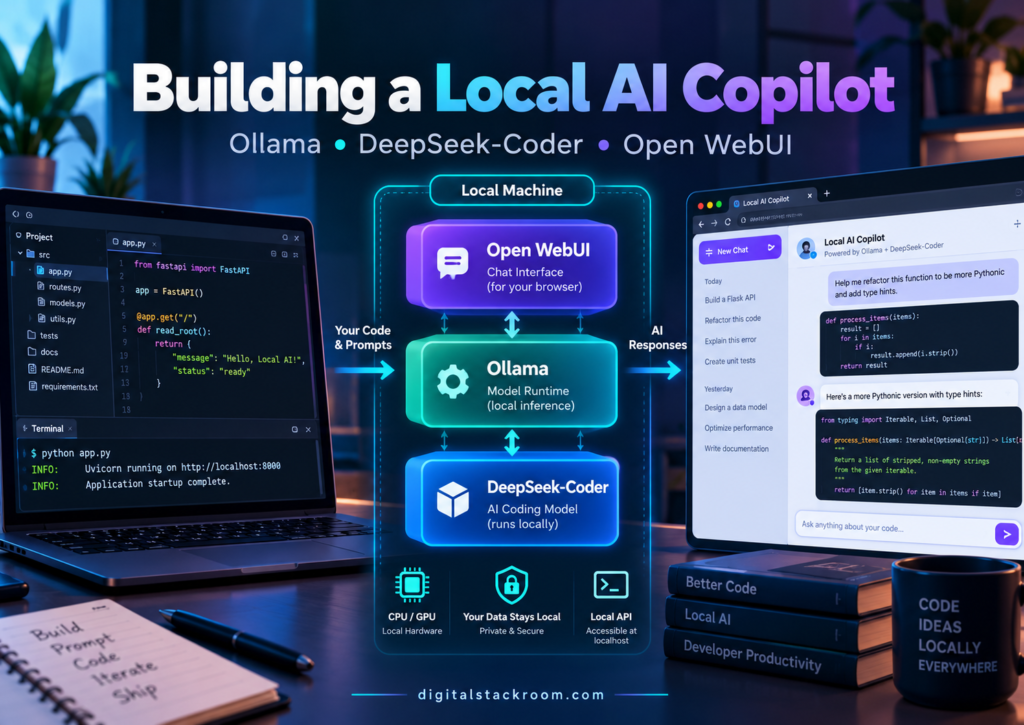
A practical local setup can be built with three components:
Ollama
+
DeepSeek-Coder
+
Open WebUI
The result is a self-hosted coding assistant that runs on your own machine.
The architecture is simple:
Developer
    ↓
Browser
    ↓
Open WebUI
    ↓
Ollama API
    ↓
DeepSeek-Coder
    ↓
CPU / GPU
Ollama manages the model.
DeepSeek-Coder provides the coding intelligence.
Open WebUI gives you a polished browser interface with persistent conversations, model management, authentication, knowledge features, and additional integrations.
By the end of this tutorial, we will have:
a local coding model

a ChatGPT-style browser interface

a local REST API

persistent chat history

optional LAN access

an OpenAI-compatible endpoint

a basic local developer copilot workflow
without requiring an OpenAI, Anthropic, or other hosted-model API key.
Table of Contents
What We Are Building
The finished architecture looks like this:
                         Your Computer
┌─────────────────────────────────────────────────┐
│                                                 │
│  Browser                                        │
│     │                                           │
│     │ http://localhost:3000                     │
│     ▼                                           │
│  ┌────────────────────┐                         │
│  │    Open WebUI      │                         │
│  │                    │                         │
│  │ Chat               │                         │
│  │ History            │                         │
│  │ Model selection    │                         │
│  │ Knowledge          │                         │
│  └─────────┬──────────┘                         │
│            │                                    │
│            │ Ollama API                         │
│            │ :11434                             │
│            ▼                                    │
│  ┌────────────────────┐                         │
│  │      Ollama        │                         │
│  │                    │                         │
│  │ Model runtime      │                         │
│  │ Model management   │                         │
│  └─────────┬──────────┘                         │
│            │                                    │
│            ▼                                    │
│   DeepSeek-Coder 6.7B                           │
│            │                                    │
│            ▼                                    │
│        CPU / GPU                                │
│                                                 │
└─────────────────────────────────────────────────┘
Everything can remain on the local machine.
The application does not inherently require your prompts or source code to be sent to a hosted LLM provider.
What Each Component Does
Before installing anything, it helps to understand the responsibility of each layer.
Ollama
Ollama is the model runtime.
It handles:
model downloads

model storage

quantized model execution

CPU/GPU acceleration

local REST API

OpenAI-compatible API

model lifecycle
Without a frontend, you can already use Ollama directly from the terminal.
For example:
ollama run deepseek-coder:6.7bDeepSeek-Coder
DeepSeek-Coder is a family of coding-focused language models.
The Ollama library currently exposes:
| Model | Approximate Ollama Model Size | Context |
|---|---|---|
deepseek-coder:1.3b | 776 MB | 16K |
deepseek-coder:6.7b | 3.8 GB | 16K |
deepseek-coder:33b | 19 GB | 16K |
The download size is not the same as total runtime memory usage.
When the model runs, additional memory is required for:
model state

KV cache

context

runtime buffers

GPU/CPU overhead
The longer the context, the more memory the inference process can require.
Open WebUI
Open WebUI is the user-facing application.
It provides:
chat interface

conversation history

multiple users

model management

knowledge bases

tools

authentication

administration

provider connections
Open WebUI does not itself provide the DeepSeek model.
It connects to Ollama, which serves the model.
This separation is useful.
You can later replace:
DeepSeek-Coderwith:
Qwen Coder

GLM coding model

Llama

Gemma

another Ollama model
without replacing Open WebUI.
Why Build a Local Coding Copilot?
Running locally has several advantages.
Your Source Code Can Stay Local
A typical cloud coding assistant works like:
Editor
   ↓
Vendor API
   ↓
Cloud model
A local setup can instead work like:
Editor / Browser
      ↓
localhost
      ↓
local model
That can be useful when working with code that should not leave the development environment.
However, local deployment alone does not guarantee security.
If you later connect Open WebUI to:
cloud APIs

web search

external tools

remote MCP servers
data can still leave the machine through those integrations.
Local AI should therefore be thought of as:
infrastructure you control
rather than:
automatically private under every configuration.
No Per-Request API Billing
Once the model has been downloaded, local inference does not incur token-based API charges.
Your cost becomes mostly:
hardware

electricity

storage

maintenance
instead of:
input tokens

output tokens

API subscription
For frequent experimentation, that can be attractive.
You Can Work Without Internet Access
Once:
Ollama

Open WebUI container images

model files
have been downloaded, the core inference stack can operate locally.
This is useful for:
offline environments

restricted development networks

travel

lab environments
Some optional Open WebUI capabilities may still attempt to reach external services unless explicitly configured for offline operation.
You Control the Model
You can decide:
which model

which quantization

which system prompt

which context size

which machine

which API consumers
rather than accepting a fixed hosted model.
That makes local AI excellent for experimentation.
Hardware Requirements
There is no single hardware requirement because the correct answer depends heavily on:
model size

quantization

context length

GPU

available RAM
The most important rule is:
Use the smallest model that gives acceptable quality on your hardware.
Practical Starting Point
For this tutorial:
deepseek-coder:6.7bis a reasonable balance.
A practical machine might have:
16 GB system RAM

recent CPU

or

supported GPU with sufficient VRAM
but actual performance varies considerably.
You can still run the model on CPU.
It will simply be slower than GPU-assisted inference.
If You Have Limited Hardware
Use:
ollama run deepseek-coder:1.3bThe model is much smaller.
The trade-off is quality.
It may be adequate for:
small functions

syntax help

simple explanations

basic code generation
but will generally be weaker at larger repository or reasoning tasks.
If You Have High-End Hardware
You can experiment with:
ollama run deepseek-coder:33bThe Ollama model package is roughly:
19 GBand runtime memory requirements will be higher.
Do not assume that a machine with exactly 19 GB of RAM can comfortably run a 19 GB model.
The runtime needs additional memory.
DeepSeek-Coder Is No Longer the Newest Coding Model
There is another important point.
DeepSeek-Coder remains available through Ollama and works well for demonstrating a local coding stack.
However, it is not the newest generation of local coding model.
Ollama currently highlights newer coding-oriented models such as:
Qwen3-Coder

GLM coding models

GPT-OSS variants
for modern coding-agent integrations.
We are intentionally using DeepSeek-Coder here because it is:
relatively lightweight

easy to run

well understood

available locally

good for learning the architecture
Once the stack works, replacing the model takes only one command.
Step 1 — Install Ollama
Ollama currently supports:
Windows

macOS

Linux
Install Ollama on Windows
The current official installation can be started using PowerShell:
irm https://ollama.com/install.ps1 | iexYou can also install Ollama using the official installer from the Ollama download page.
After installation, open:
PowerShellor:
Windows Terminaland run:
ollama --versionYou should see the installed version.
Install Ollama on Linux
Run:
curl -fsSL https://ollama.com/install.sh | shThen verify:
ollama --versionInstall Ollama on macOS
You can install the official macOS application from Ollama’s download page.
After installation:
ollama --versionshould work from a terminal.
Step 2 — Verify the Ollama Service
Ollama normally exposes its local API on:
http://localhost:11434Try:
curl http://localhost:11434/api/tagsIf Ollama is running but no models are installed yet, you may receive:
{
  "models": []
}
That is fine.
It confirms that the local API works.
Step 3 — Download DeepSeek-Coder
For this tutorial, use:
ollama pull deepseek-coder:6.7bYou should see progress similar to:
pulling manifest

pulling layers

verifying digest

writing manifest

success
The model is stored locally by Ollama.
Why I Am Explicitly Using :6.7b
If you run:
ollama run deepseek-coderwithout specifying a version, the current default model is:
deepseek-coder:1.3bThat is only around:
776 MBin the Ollama library.
For a serious coding assistant, you may unintentionally conclude that DeepSeek-Coder is weak when you are actually using the smallest model.
Use:
deepseek-coder:6.7bfor this tutorial.
Step 4 — Test DeepSeek-Coder From the Terminal
Run:
ollama run deepseek-coder:6.7bYou should enter an interactive prompt.
Try:
Write a Python function that reads a JSON file and
returns all unique values of the "speakerId" field.

Handle missing keys safely.
The model should return Python code.
Exit the interactive session using:
Ctrl+Dor the supported quit command for your terminal session.
Step 5 — Test the Ollama REST API
One of the most useful parts of Ollama is that the model is automatically available through a local HTTP API.
Run:
curl http://localhost:11434/api/chat \
  -H "Content-Type: application/json" \
  -d '{
    "model": "deepseek-coder:6.7b",
    "messages": [
      {
        "role": "user",
        "content": "Write a Python function that reverses a list."
      }
    ],
    "stream": false
  }'
A successful response contains a model message.
Conceptually:
{
  "model": "deepseek-coder:6.7b",
  "message": {
    "role": "assistant",
    "content": "..."
  }
}
At this point you already have:
local model server
+
local coding API
Open WebUI is optional from a technical perspective.
It simply makes the system much easier to use.
Step 6 — Install Docker
The easiest supported Open WebUI installation uses Docker.
You will need:
Docker Desktopon Windows/macOS or:
Docker Engineon Linux.
Verify:
docker --versionand:
docker infobefore continuing.
If Docker cannot run containers yet, fix Docker first.
Do not debug Open WebUI and Docker simultaneously.
Step 7 — Generate an Open WebUI Secret Key
Current Open WebUI guidance recommends setting a persistent:
WEBUI_SECRET_KEYGenerate one:
openssl rand -hex 32Example output:
7c83f8d9c1...Do not use the example value.
Keep your actual key somewhere secure.
This key should remain stable across container recreation.
Changing it can invalidate existing authenticated sessions.
Step 8 — Start Open WebUI
Run:
docker run -d \
  -p 3000:8080 \
  --add-host=host.docker.internal:host-gateway \
  -v open-webui:/app/backend/data \
  -e WEBUI_SECRET_KEY="YOUR_SECRET_KEY" \
  --name open-webui \
  --restart always \
  ghcr.io/open-webui/open-webui:main
Replace:
YOUR_SECRET_KEYwith the generated value.
What This Command Does
Publish Port 3000
-p 3000:8080maps:
Host port 3000
      ↓
Container port 8080
Open:
http://localhost:3000in your browser.
Persist Open WebUI Data
-v open-webui:/app/backend/datastores:
users

conversations

settings

configuration
outside the disposable container filesystem.
Without a persistent volume, deleting the container could also delete application state.
Let Docker Reach Ollama
--add-host=host.docker.internal:host-gatewayallows the Open WebUI container to connect to Ollama running on the host machine.
Inside Docker:
localhostmeans:
the Open WebUI container itselfnot your laptop.
This distinction causes many first-time setup failures.
Step 9 — Open Open WebUI
Visit:
http://localhost:3000You should see the initial Open WebUI setup page.
Create the first account.
The first account created on a fresh installation becomes:
AdministratorCurrent Open WebUI behavior disables open registration after that first admin account is established unless signup is explicitly enabled again.
This is a useful security default.
Step 10 — Check Whether Open WebUI Found Ollama
Open WebUI normally detects Ollama running on the Docker host through:
http://host.docker.internal:11434Go to:
Settings
→ Admin
→ Connections
You should see the Ollama connection.
If it is configured correctly, the model selector should eventually show:
deepseek-coder:6.7bSelect it.
Step 11 — Test the Local AI Copilot
Start a new conversation.
Try:
You are reviewing a production Express.js API.

Review the following function for:

- SQL injection
- missing error handling
- connection leaks
- incorrect async behavior

Explain each issue before proposing a corrected version.
Paste a function.
DeepSeek-Coder should analyze it locally.
Create a Better Coding System Prompt
A coding model becomes more useful when you clearly define how it should behave.
For example:
You are a senior software engineer acting as my local coding copilot.

When reviewing code:

1. Understand the existing behavior first.
2. Identify correctness issues before stylistic issues.
3. Do not invent APIs, methods, or libraries.
4. Preserve existing business logic unless explicitly asked to change it.
5. Explain security implications.
6. Prefer small, maintainable changes.
7. Mention assumptions clearly.
8. When unsure, say what must be verified.
9. Provide complete runnable code when requested.
10. Never claim tests passed unless you actually executed them.
That last rule is particularly important.
A chat-based model cannot truthfully say:
All tests pass.unless it actually has a tool or agent environment capable of running them.
Your Local Copilot Is Not the Same as Cursor or Claude Code
This distinction is important.
The architecture we have built is primarily:
Developer
   ↓
Chat interface
   ↓
Coding model
Modern coding agents such as:
Cursor

Claude Code

GitHub Copilot agents
can additionally:
inspect repository files

edit multiple files

execute commands

run tests

use Git

open pull requests
A basic Open WebUI + DeepSeek-Coder installation does not automatically have unrestricted access to your repository or terminal.
That can actually be an advantage from a security perspective.
You decide which capabilities to add.
For a comparison of full agentic development environments, see:
Cursor vs GitHub Copilot vs Claude Code: AI Coding Tools Compared
Using Ollama From Python
The stack is not limited to Open WebUI.
You can build your own local tools.
Install the Ollama Python package:
pip install ollamaThen:
from ollama import chat


response = chat(
    model="deepseek-coder:6.7b",
    messages=[
        {
            "role": "system",
            "content":
                "You are a senior Python engineer.",
        },
        {
            "role": "user",
            "content":
                """
                Explain why this code can leak
                a database connection:

                client = pool.connect()
                do_work(client)
                """
        },
    ],
)


print(
    response.message.content
)
The model request remains local when your Ollama endpoint is local.
Using Ollama From JavaScript
Install:
npm install ollamaExample:
import ollama from "ollama";


const response =
  await ollama.chat({

    model:
      "deepseek-coder:6.7b",

    messages: [
      {
        role:
          "system",

        content:
          "You are a senior Node.js engineer."
      },

      {
        role:
          "user",

        content:
          "Explain async/await error handling in Express."
      }
    ]
  });


console.log(
  response.message.content
);
This can be embedded into your own local developer tooling.
Ollama Also Provides an OpenAI-Compatible API
This is extremely useful.
Many developer tools already understand:
OpenAI-compatible APIOllama supports that interface locally.
The base URL is:
http://localhost:11434/v1For example:
from openai import OpenAI


client = OpenAI(

    base_url=
        "http://localhost:11434/v1",

    api_key=
        "ollama",
)


response = (
    client.chat.completions.create(

        model=
            "deepseek-coder:6.7b",

        messages=[
            {
                "role":
                    "user",

                "content":
                    "Write a PostgreSQL query using a CTE."
            }
        ],
    )
)


print(
    response
        .choices[0]
        .message
        .content
)
The API key value is required by some OpenAI client libraries but is not used as a remote Ollama credential in the default local setup.
Why OpenAI Compatibility Matters
It allows software designed around the OpenAI API schema to potentially point to:
http://localhost:11434/v1instead of:
https://api.openai.com/v1That makes Ollama useful as a local model backend for:
developer tools

scripts

experiments

agent frameworks

internal applications
without rewriting every integration.
Build a Simple Local Code Reviewer
Let’s create a small Python utility.
Create:
review.pywith:
from pathlib import Path

from ollama import chat


def review_file(
    file_path: str,
) -> str:

    path = Path(
        file_path
    )


    code = (
        path
        .read_text(
            encoding="utf-8"
        )
    )


    prompt = f"""
Review the following source file.

Focus on:

1. correctness
2. security
3. error handling
4. performance
5. maintainability

Do not invent problems.

For each issue:
- explain the problem
- show the affected code
- suggest a minimal correction

File:
{path.name}

Code:

```text
{code}
“””
response = chat(

    model=
        "deepseek-coder:6.7b",

    messages=[
        {
            "role":
                "user",

            "content":
                prompt,
        }
    ],
)


return (
    response
    .message
    .content
)
if name == “main“:
print(
    review_file(
        "example.py"
    )
)
Run:

```bash
python review.py
Now you have a simple local code-review assistant.
Do Not Automatically Send Your Entire Repository to the Model
Local does not mean:
more context is always betterSuppose your repository contains:
15,000 filesDumping all of them into one prompt would be:
slow

wasteful

likely beyond context limits

less focused
A better architecture is:
Question
   ↓
Identify relevant files
   ↓
Retrieve relevant code
   ↓
Model
This is the same retrieval principle used in RAG systems.
For vector retrieval architecture, see:
Pinecone vs Qdrant vs pgvector: Vector Database Comparison
Context Windows Still Matter
The Ollama DeepSeek-Coder variants currently advertise approximately:
16K contextin the Ollama model library.
That context must contain some combination of:
system prompt

conversation history

source code

retrieved files

model response
If you paste:
multiple large files

long logs

long conversation history
the context can become constrained.
A coding workflow should therefore select relevant code instead of dumping entire repositories.
Persistent Conversations Can Become Counterproductive
Open WebUI can preserve long conversations.
That is convenient.
But an old coding conversation may accumulate:
obsolete requirements

old code

incorrect assumptions

previous implementations
Eventually a fresh conversation can produce better results.
For a new task, consider starting with:
current requirement

current code

current constraints
rather than assuming a six-hour chat history improves accuracy.
Use Separate Conversations for Separate Engineering Tasks
A good pattern is:
Chat 1
Database migration

Chat 2
Authentication bug

Chat 3
React component refactor

Chat 4
Deployment debugging
rather than:
One permanent chat for everything.This reduces unrelated context.
Docker Compose: A Cleaner Setup
For a repeatable setup, use Docker Compose.
There are two good architectures.
Option A — Ollama on Host, Open WebUI in Docker
This is the setup we already created.
Host OS
│
├── Ollama
│      └── :11434
│
└── Docker
       └── Open WebUI
              └── :3000
It is simple and often ideal for desktops because Ollama can use the native host GPU environment.
Option B — Ollama and Open WebUI in Docker
Create:
docker-compose.ymlwith:
services:

  ollama:

    image:
      ollama/ollama:latest

    container_name:
      ollama

    restart:
      unless-stopped

    volumes:
      - ollama:/root/.ollama


  open-webui:

    image:
      ghcr.io/open-webui/open-webui:main

    container_name:
      open-webui

    restart:
      unless-stopped

    depends_on:
      - ollama

    ports:
      - "3000:8080"

    environment:
      OLLAMA_BASE_URL:
        http://ollama:11434

      WEBUI_SECRET_KEY:
        ${WEBUI_SECRET_KEY}

    volumes:
      - open-webui:/app/backend/data


volumes:

  ollama:

  open-webui:
Create:
.envwith:
WEBUI_SECRET_KEY=YOUR_RANDOM_SECRETThen:
docker compose up -dWhy We Did Not Publish Ollama Port 11434
Notice that the Compose example does not contain:
ports:
  - "11434:11434"
for Ollama.
That is intentional.
Open WebUI can reach Ollama through Docker’s internal network:
http://ollama:11434Your browser does not need direct access to Ollama.
The traffic path becomes:
Browser
   ↓
Open WebUI :3000
   ↓
Docker network
   ↓
Ollama :11434
This reduces unnecessary exposure.
If another host application needs Ollama’s API, you can explicitly expose the port later.
Pull the Model Inside Docker
If Ollama itself runs in Docker:
docker exec \
  -it ollama \
  ollama pull \
  deepseek-coder:6.7b
List models:
docker exec \
  ollama \
  ollama list
You should see:
deepseek-coder:6.7bGPU Support With Docker
GPU configuration is platform-specific.
For NVIDIA Docker environments, the Ollama container can be started with GPU access when the host has the required NVIDIA container runtime support.
For example:
docker run \
  --gpus all \
  ...
Do not assume Docker automatically has GPU access simply because the host machine has a GPU.
Verify inside your environment.
Troubleshooting: Open WebUI Cannot Reach Ollama
This is the most common problem.
You open Open WebUI but see:
No modelsor:
Connection errorThe reason is often Docker networking.
Wrong Configuration
Inside the Open WebUI container:
http://localhost:11434points back to:
Open WebUI containernot Ollama on the host.
Correct Host Connection
For host-installed Ollama:
http://host.docker.internal:11434is the standard Open WebUI Docker connection pattern.
The Docker command should include:
--add-host=host.docker.internal:host-gatewayCheck Ollama From the Host
Run:
curl \
  http://localhost:11434/api/tags
If that fails, Open WebUI is not the problem.
Fix Ollama first.
Check Open WebUI Logs
Run:
docker logs \
  -f open-webui
Look for connection or startup errors.
Check the Container
Run:
docker psYou should see:
open-webuiwith:
0.0.0.0:3000->8080/tcpor an equivalent port mapping.
Troubleshooting: Model Is Very Slow
Several causes are possible.
CPU-Only Inference
The model may be running entirely on CPU.
That can be much slower.
Model Is Too Large
If:
deepseek-coder:33bdoes not fit comfortably in available memory, performance can degrade badly.
Try:
deepseek-coder:6.7bor:
deepseek-coder:1.3bLong Context
A large prompt may dramatically increase processing time.
Try a simple request:
Write a Python function that adds two numbers.If that is fast but a large repository paste is slow, context size is the issue.
Troubleshooting: Model Uses Too Much RAM
Check running models:
ollama psStop a model:
ollama stop \
  deepseek-coder:6.7b
Ollama manages model loading, but models consume memory while active.
If the machine begins swapping heavily, use a smaller model.
Troubleshooting: Port 3000 Is Already Used
If another development application already uses:
3000change:
-p 3000:8080to:
-p 8081:8080Then open:
http://localhost:8081The left side of the Docker port mapping is the host port.
Do Not Expose Ollama Directly to the Internet
The default local Ollama architecture assumes trusted local access.
Avoid:
Internet
   ↓
:11434
   ↓
Ollama
unless you have intentionally placed an authentication and security layer in front of it.
The safer architecture is:
Internet / LAN
      ↓
authenticated application
      ↓
Ollama
For API security fundamentals, see:
Securing API Endpoints with JWT, CORS & Environment Variables
Sharing Open WebUI Across Your Home or Office Network
You may want:
desktop GPU machineto run the model while:
laptopuses the interface.
The architecture becomes:
Laptop browser
      ↓
LAN
      ↓
AI workstation
      ↓
Open WebUI
      ↓
Ollama
If Open WebUI is listening on the host network, you may be able to access:
http://AI-SERVER-IP:3000from another device.
For example:
http://192.168.1.25:3000Do not automatically expose that port through your internet router.
LAN access and internet exposure are different security decisions.
Use Authentication on Shared Instances
Open WebUI supports local user authentication.
For a shared instance:
Admin
   ↓
Users
   ↓
Open WebUI
is preferable to an unauthenticated shared interface.
Current Open WebUI behavior makes the first user the administrator and disables further open signup after initial setup unless the administrator enables registration again.
If you deliberately enable additional signup, new accounts can remain:
Pendinguntil an administrator approves them.
Use HTTPS for Anything Beyond Localhost
For:
localhostplain HTTP is usually acceptable for development.
For:
office LAN

remote users

VPN access
consider putting Open WebUI behind:
Caddy

Nginx

Traefik

Tailscale
with HTTPS.
A production-like architecture might be:
Users
   ↓
HTTPS
   ↓
Reverse Proxy
   ↓
Open WebUI
   ↓
Ollama
Do Not Put Sensitive Repositories Into a Shared Knowledge Base
Open WebUI supports knowledge-management features.
That does not mean every repository should automatically be uploaded.
Consider:
who can access the instance

who can access the knowledge base

how long content is retained

whether users share accounts

whether backups include the data
before uploading proprietary code.
Local storage still needs governance.
Create a Dedicated Coding Model Profile
Rather than using the model as a generic chatbot, configure it for software engineering.
Useful instructions:
Act as a senior software engineer.

Prioritize:

correctness
security
maintainability
performance

When writing code:

- preserve existing logic
- do not invent package APIs
- use parameterized SQL
- avoid hard-coded credentials
- include error handling
- explain assumptions
- mention tests that should be run
This creates a more predictable experience.
Useful Prompts for a Local Coding Copilot
Code Review
Review this code for:

1. correctness
2. security vulnerabilities
3. concurrency problems
4. resource leaks
5. error handling
6. unnecessary complexity

Separate confirmed issues from suggestions.
SQL Review
Review this SQL query.

Check:

- correctness
- join duplication
- NULL handling
- partition filters
- unnecessary DISTINCT
- expensive scans
- aggregation errors

Do not rewrite it unless there is a real issue.
Debugging
I will provide:

1. error message
2. relevant code
3. expected behavior

Find the most likely root cause.

Do not propose code changes until you explain
why the failure occurs.
Refactoring
Refactor this function without changing observable behavior.

Constraints:

- preserve function signature
- preserve return type
- do not add dependencies
- reduce duplicated logic
- keep the implementation readable

Explain every behavioral assumption.
Use the Model for Reasoning, Not Authority
A local coding model can confidently produce incorrect code.
Treat output as:
proposalnot:
verified truthThe proper workflow is:
Ask model
   ↓
Review code
   ↓
Run formatter
   ↓
Compile/typecheck
   ↓
Run tests
   ↓
Inspect result
This is the same principle that applies to more advanced coding agents.
Add Deterministic Verification
Suppose the model generates Python.
You can verify with:
python -m py_compile \
  example.py
Then:
pytestFor TypeScript:
npm run typecheckThen:
npm testFor browser applications:
Playwrightor:
Seleniumcan provide deterministic end-to-end feedback.
See:
Playwright vs Selenium for Headless Browser Automation
Local AI Works Best With Small, Focused Inputs
Instead of:
Here is my entire repository.

Fix everything.
use:
Here is the controller.

Here is the repository method it calls.

Here is the error.

Here is the expected behavior.
This improves:
context efficiency

response quality

debuggability
especially with smaller local models.
Running Multiple Models
One of the advantages of Ollama is model switching.
List installed models:
ollama listYou might eventually have:
deepseek-coder:6.7b

qwen-coder-model

general-chat-model
Open WebUI can expose all of them in the model selector.
Use:
coding modelfor code tasks and:
general reasoning modelfor other conversations if that produces better results.
Remove a Model You No Longer Need
Model files consume significant disk space.
Remove:
ollama rm \
  deepseek-coder:33b
List current storage:
ollama listDo not keep every model you experiment with indefinitely.
Updating Open WebUI
If you installed the container directly:
docker pull \
  ghcr.io/open-webui/open-webui:main
Stop and remove the old container:
docker stop \
  open-webui

docker rm \
  open-webui
Then recreate it using the same:
volume

secret key

configuration
Because your state lives in:
open-webui:/app/backend/datarecreating the container does not inherently remove the persistent data volume.
Always back up important data before upgrades.
Updating With Docker Compose
If using Compose:
docker compose pullthen:
docker compose up -dThis is a much cleaner long-term workflow.
Back Up Open WebUI Data
The Docker volume contains application state.
A local AI system can eventually contain:
important chats

prompts

users

knowledge data

configuration
Treat it like application data.
Do not assume:
local
=
doesn't need backup
Local disk failure is still possible.
Local AI and Cloud AI Can Coexist
Open WebUI can also connect to cloud model providers.
That means an architecture can become:
                 Open WebUI
                /          \
               /            \
              ▼              ▼
          Ollama          Cloud API
              │
              ▼
        local models
You can use:
local modelfor sensitive or inexpensive tasks and:
cloud frontier modelwhen a task requires greater capability.
The important part is making that decision intentionally.
Local AI Is Not Automatically Cheaper
If you already own suitable hardware, local inference can be inexpensive.
But if you purchase:
high-end GPU

large RAM

power supply

dedicated workstation
only to avoid occasional API calls, the economics may not make sense.
Think in terms of:
frequency of usage

privacy requirements

latency

hardware ownership

model quality required
rather than assuming:
local = freeLocal AI Is Not Automatically Faster
A small local model on a powerful GPU may feel extremely responsive.
A large model running on CPU may be much slower than a cloud API.
Performance depends on:
model size

quantization

GPU

VRAM

RAM bandwidth

context size

hardware generation
Locality reduces network latency.
It does not eliminate compute cost.
Local AI Is Not Automatically Better for Coding
A local 6.7B model may work well for:
SQL explanations

Python functions

bug analysis

code reviews

documentation

small refactors
but may struggle with:
large repository refactors

complex architecture reasoning

multi-hour agentic tasks

very long context

novel framework behavior
compared with larger frontier models.
The goal is not to prove that local models are universally superior.
The goal is to have another useful option.
When This Setup Makes Sense
This architecture works particularly well for:
developers learning local AI

private code experiments

offline environments

internal prototypes

code explanation

SQL assistance

small code reviews

local API experimentation

RAG experiments
When You Probably Need a More Advanced Setup
If you need:
repository indexing

automatic file editing

terminal execution

Git operations

multi-agent workflows

long-running coding tasks
you should look at an agentic development environment.
For example:
Cursor vs GitHub Copilot vs Claude Code: AI Coding Tools Compared
Ollama can also act as a model backend for some modern coding tools through its API and newer integration mechanisms.
A Good Local Developer Architecture
A mature personal setup might eventually look like:
                        Developer
                            │
             ┌──────────────┼──────────────┐
             ▼              ▼              ▼
        Open WebUI       IDE Tool       Scripts
             │              │              │
             └──────────────┼──────────────┘
                            ▼
                         Ollama
                            │
               ┌────────────┼────────────┐
               ▼            ▼            ▼
          Code Model   General Model   Embedding Model
This gives you one local inference layer serving multiple applications.
Optional: Add Retrieval Over Your Own Documentation
Once the basic setup works, Open WebUI can be extended with document knowledge.
Architecture:
Internal docs
      ↓
Chunking
      ↓
Embeddings
      ↓
Vector search
      ↓
Relevant context
      ↓
Coding model
This can help answer questions such as:
How does our authentication middleware work?

What is the deployment process?

Which API endpoint handles task cancellation?
based on your own documentation.
This moves the architecture toward a local RAG system.
For vector storage options, see:
Pinecone vs Qdrant vs pgvector: Vector Database Comparison
For production LLM observability concepts, see:
Langfuse vs Arize Phoenix vs Weave: LLM Observability Compared
Security Checklist
Before calling the local setup finished, check:
| Area | Recommendation |
|---|---|
| Ollama API | Keep private unless intentionally secured |
| Open WebUI | Use authentication |
| Admin account | Strong password |
| Signup | Keep disabled unless needed |
| Docker volume | Protect and back up |
| Secret key | Generate and store securely |
| Internet exposure | Avoid direct port forwarding |
| LAN access | Restrict using firewall/VPN |
| HTTPS | Use for remote/shared access |
| Source code | Share only what the model needs |
| External tools | Review what data they can access |
| Cloud APIs | Understand when prompts leave the machine |
| Backups | Protect conversations/configuration |
| Updates | Patch Ollama/Open WebUI regularly |
Final Docker Compose Example
For a simple self-contained stack:
services:

  ollama:

    image:
      ollama/ollama:latest

    container_name:
      ollama

    restart:
      unless-stopped

    volumes:
      - ollama:/root/.ollama


  open-webui:

    image:
      ghcr.io/open-webui/open-webui:main

    container_name:
      open-webui

    restart:
      unless-stopped

    depends_on:
      - ollama

    ports:
      - "3000:8080"

    environment:

      OLLAMA_BASE_URL:
        http://ollama:11434

      WEBUI_SECRET_KEY:
        ${WEBUI_SECRET_KEY}

    volumes:
      - open-webui:/app/backend/data


volumes:

  ollama:

  open-webui:
Start:
docker compose up -dPull DeepSeek-Coder:
docker exec \
  ollama \
  ollama pull \
  deepseek-coder:6.7b
Open:
http://localhost:3000and select:
deepseek-coder:6.7bYou now have a locally hosted coding copilot.
Final Architecture
The final system is pleasantly simple:
                         LOCAL MACHINE

Developer
   │
   ▼
Browser
   │
   ▼
┌───────────────────┐
│    Open WebUI     │
│                   │
│ Chat              │
│ History           │
│ Authentication    │
│ Knowledge         │
└─────────┬─────────┘
          │
          │ Ollama API
          ▼
┌───────────────────┐
│      Ollama       │
│                   │
│ Model runtime     │
│ API server        │
│ Model manager     │
└─────────┬─────────┘
          │
          ▼
┌───────────────────┐
│ DeepSeek-Coder    │
│       6.7B        │
└─────────┬─────────┘
          │
          ▼
       CPU / GPU
There is no requirement for the coding request itself to travel to a hosted LLM provider when everything is configured locally.
Final Thoughts
Building a local AI coding assistant is no longer a research project.
The core setup can be reduced to:
Install Ollama

↓
Pull coding model

↓
Start Open WebUI

↓
Connect Open WebUI to Ollama

↓
Start coding
The more interesting lesson is architectural.
Ollama separates:
model executionfrom:
user interfaceand exposes the model through a normal HTTP API.
That means the same local model can power:
Open WebUI

Python scripts

Node.js tools

IDE integrations

RAG applications

internal developer tools
without every application implementing its own inference runtime.
DeepSeek-Coder is a useful model for learning that architecture because the 6.7B version remains practical on many developer machines.
It is not the newest or strongest coding model available today, and you should absolutely test newer alternatives once the stack works.
But that is another advantage of this architecture.
Replacing:
DeepSeek-Coderdoes not require rebuilding:
Open WebUI

your local API integrations

your developer scripts
The model is simply one replaceable layer.
For local AI, that modularity is much more valuable than committing your entire workflow to one model.
Official Documentation and Technical References
Ollama
Ollama DeepSeek-Coder Model Library
Open WebUI
Open WebUI Environment Configuration
Open WebUI Authentication and Access